
Try Our Free Tools
Convert, compress, and edit PDFs instantly in your browser.
If you want to convert PowerPoint to PDF without changing layout, the best approach is to review your presentation before converting, use supported fonts and high-quality images, and compare the final PDF with the original slides. Most presentations convert accurately, but fonts, images, slide settings and unsupported elements can sometimes affect the final result.
This matters when you’re sharing proposals, reports, training slides, pitch decks, school presentations or client documents. A poor conversion can shift text boxes, replace fonts, blur images or crop slide content, which makes the final PDF look unprofessional.
If you want a quick browser-based option, use iConvertOnline PowerPoint to PDF to convert PPT or PPTX files into PDF format.
Why PowerPoint layouts can change during PDF conversion
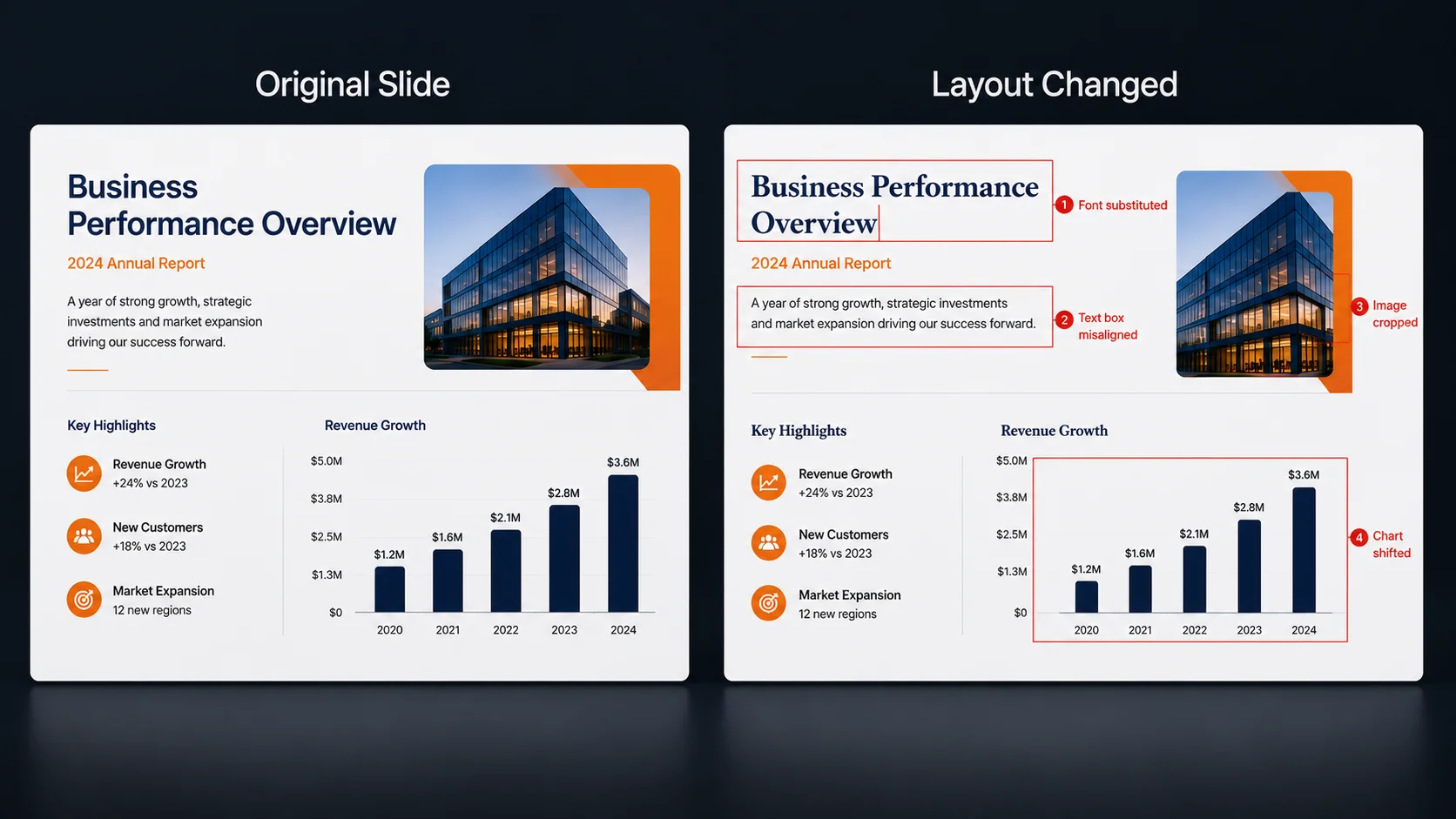
PowerPoint presentations contain fonts, images, charts, shapes, videos, animations and slide settings. A PDF is a fixed document format, so the converter has to turn every slide into static pages while preserving the layout as closely as possible.
Most layout issues happen when the presentation uses missing fonts, unusual slide sizes, low-resolution images or interactive elements that PDF cannot display.
Missing or unsupported fonts
One of the most common reasons layouts change is missing fonts.
If the conversion tool cannot access the original font, it may replace it with another font. This can alter spacing, line breaks, text box size and slide alignment.
Differences in slide size and page settings
PowerPoint slides are usually created in Standard (4:3) or Widescreen (16:9) format.
If the page settings change during conversion, the final PDF may appear stretched, cropped or scaled differently from the original presentation.
Image compression and resolution changes
Large images are sometimes compressed during export to reduce file size.
Heavy compression can make photos, screenshots, logos and graphics appear blurry inside the final PDF.
Misaligned text boxes, shapes and objects
Objects that are carefully positioned inside PowerPoint can shift slightly if fonts change or unsupported elements are replaced.
This may affect:
Text boxes
SmartArt
Shapes
Charts
Icons
Tables
Unsupported animations, videos and transitions
PDF files display static content only. Animations, slide transitions, embedded videos and audio do not play inside a standard PDF.
If your presentation relies heavily on movement or media, you may need to share the original PowerPoint file as well as the PDF.
How to convert PowerPoint to PDF without changing layout online
Using an online PPT to PDF converter is one of the easiest ways to make your presentation easier to share, upload and print. For best results, check the file first, then review the converted PDF before sending it.
Step 1: Review the PowerPoint presentation
Before converting, open the presentation and check every slide carefully.
Look for:
Missing images
Overlapping text
Broken charts
Incorrect fonts
Hidden objects
Cropped graphics
Fixing these issues before conversion helps produce a cleaner PDF.
Step 2: Upload the PPT or PPTX file
Open the online PowerPoint to PDF converter and upload your PPT or PPTX presentation.
For best results, use the final version of your file rather than a working draft with hidden slides, placeholder content or unfinished charts.
Step 3: Convert the presentation to PDF
The converter processes your slides and creates a PDF while preserving text, images, layouts and page order wherever possible.
Each PowerPoint slide becomes a PDF page, making the file easier to send, print, upload or view across devices.
Step 4: Download and inspect the PDF
After conversion, download the finished PDF and review each page carefully.
Pay close attention to:
Fonts
Images
Tables
Charts
Page margins
Slide numbers
Step 5: Compare the PDF with the original slides
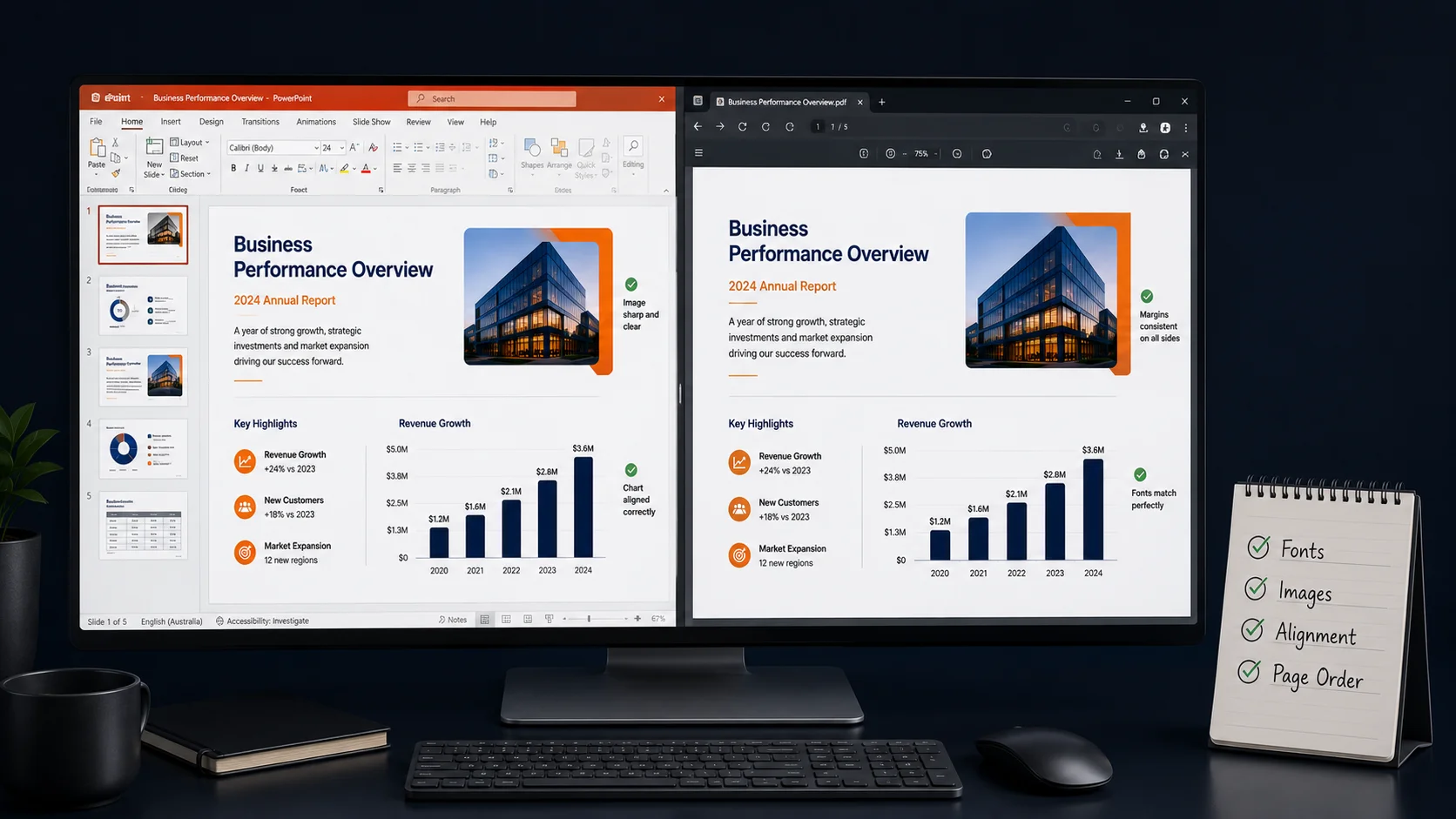
Open the PowerPoint presentation alongside the PDF and compare each slide.
Check that:
Fonts match
Images remain sharp
Objects stay aligned
Colours remain consistent
Page order is correct
Tip: If the PDF is for a client, submission or printed handout, always review it page by page before sending. Small slide layout issues are much easier to fix before the file is shared.
How to prepare PowerPoint before converting to PDF
Preparing your presentation before conversion can significantly reduce formatting issues. A few quick checks can protect fonts, images, page size and slide alignment.
Use standard or embedded fonts
Standard fonts such as Arial, Calibri, Verdana and Times New Roman are less likely to be replaced during conversion.
If you use custom fonts, embed them inside the PowerPoint file where licensing allows. This reduces the chance of font substitution in the PDF.
Confirm the correct slide dimensions
Make sure the presentation uses the intended slide size before exporting or converting.
Changing slide dimensions later can affect layout, image placement and page scaling.
Check text alignment and spacing
Review titles, bullet points, tables, captions and text boxes before conversion.
Small alignment issues can become more noticeable in the final PDF, especially on slides with tight spacing.
Keep images within slide boundaries
Avoid placing images, shapes or text too close to slide edges.
Keeping graphics inside the slide boundaries reduces the risk of cropping during conversion.
Review headers, footers and slide numbers
Confirm that headers, footers and slide numbers appear correctly on every slide.
These details are easy to overlook but can make the PDF look unfinished if they shift or disappear.
Remove unsupported interactive elements
Animations, transitions, videos and interactive features should be removed or replaced if the PDF will be your final presentation format.
A PDF is best for static viewing, printing and sharing. It is not a replacement for an interactive slide show.
How to preserve fonts when converting PowerPoint to PDF
Fonts play a major role in maintaining presentation layout. Even a small font change can affect line breaks, spacing and object positioning.
Why fonts are replaced during conversion
If a font is unavailable during conversion, another font may be substituted automatically.
This can make headings wrap differently, push bullet points out of place or change the overall look of the presentation.
Use widely supported fonts
Using common fonts improves compatibility across different systems and converters.
Examples include:
Arial
Calibri
Verdana
Times New Roman
Tahoma
Embed fonts in the PowerPoint file
Embedding fonts stores font information inside the presentation. This helps the layout remain consistent when the file is opened or converted elsewhere.
Before embedding, check whether the font licence allows it. Some commercial fonts may block or restrict embedding.
How to keep images clear in the converted PDF
Image quality depends on the source files and how the presentation is prepared. If images are already blurry inside PowerPoint, they will usually remain blurry in the PDF.
Use high-resolution source images
High-quality images generally remain sharper after conversion.
Whenever possible, use the original graphics rather than screenshots, copied thumbnails or heavily compressed images.
Avoid enlarging low-quality graphics
Stretching small images can make them appear blurry in both PowerPoint and PDF.
Use images at an appropriate resolution for the slide size, especially for logos, charts, screenshots and product visuals.
Check image compression settings
PowerPoint may compress images to reduce file size. Lower compression usually produces clearer PDFs, although the file may become larger.
If the PDF becomes too large after conversion, use Compress PDF after checking the layout and image clarity.
Review charts, screenshots and logos after conversion
After exporting or converting, inspect charts, diagrams, screenshots and logos carefully.
These elements often contain small text and fine lines, so they are the first places where blur or layout problems may appear.
What happens to animations, transitions and videos?
Interactive presentation features do not behave the same way inside PDF files. A PDF is designed for static pages, not animated slide shows.
Why animations do not appear in a standard PDF
PDF documents display only the final visible state of each slide.
Animations are removed during conversion, so individual entrance effects, motion paths and animated bullet points will not play.
How transitions are handled during conversion
Slide transitions only work while presenting inside PowerPoint.
The PDF simply displays each completed slide as a static page without transition effects.
What happens to embedded audio and video
Embedded audio and video are not playable inside a standard PDF.
Only static placeholders or preview images may remain, depending on how the file was created.
Alternatives for sharing interactive presentations
If your audience needs animations, transitions or videos, share the original PowerPoint file instead of a PDF.
Use PDF when the goal is easy viewing, printing, archiving or document sharing.
How to convert PowerPoint notes and handouts to PDF
PowerPoint files can contain more than just slides. Depending on your goal, you may need full-page slides, notes pages or handout layouts.
Export slides with speaker notes
Speaker notes can be included when exporting the presentation from PowerPoint.
This is useful for presenters, trainers, educators and workshop documents.
Convert presentation handouts to PDF
Handout layouts allow multiple slides to appear on each page.
This format is commonly used for workshops, meetings, training sessions and printed materials.
Choose between full-page slides and notes pages
Select the layout that best suits your audience.
Full-page slides are ideal for viewing and sharing. Notes pages provide additional explanation or speaker context.
Check page orientation before exporting
Review portrait and landscape settings before creating the PDF.
Correct orientation improves readability when printing or sharing handouts.
Online converter vs PowerPoint export feature
Both online converters and PowerPoint’s built-in export feature can create PDF files. The best option depends on convenience, access to PowerPoint and how much control you need.
When to use an online PPT to PDF converter
An online converter is useful when:
PowerPoint is unavailable
You need a quick conversion
You are using a shared computer
You are working across multiple devices
You want to convert directly in your browser
When to use the built-in export option
PowerPoint’s export feature offers more control over presentation settings, notes and print layouts.
It may be better when you need speaker notes, handouts, advanced print options or full control over slide output.
Which method is better for quick conversions?
For most everyday users, an online PowerPoint to PDF converter is the fastest solution.
The built-in export option is useful for advanced print layouts, notes pages or presentation-specific settings.
How to fix layout problems after PowerPoint to PDF conversion
Small formatting issues can usually be corrected quickly. The best approach is to return to the PowerPoint file, fix the source slide, then convert again.
Replace missing fonts
Install the original font or replace it with a similar supported font before converting again.
Correct shifted text and overlapping elements
Adjust text boxes, charts and shapes inside PowerPoint until everything aligns correctly.
Adjust slide size and orientation
Verify that the slide dimensions match the intended presentation format before exporting again.
Fix blurry images and charts
Replace compressed graphics with higher-resolution versions where available.
Review hyperlinks and page order
Check that hyperlinks remain clickable and that the page order matches the original presentation.
Convert the corrected presentation again
After making adjustments, export or convert the presentation again and compare it with the previous PDF.
Benefits of converting PowerPoint to PDF
PDF offers several advantages over sharing PowerPoint files directly, especially when the presentation is finished and should not be edited.
Maintain a consistent appearance across devices
PDF preserves the visual appearance of the presentation regardless of the viewer’s device or software.
Make presentations easier to share
PDF files are simple to email, upload and distribute. Recipients do not need Microsoft PowerPoint to open them.
Reduce accidental edits
PDF prevents unintended modifications to your presentation. This is useful when sharing reports, proposals and final presentation decks.
Improve compatibility for printing and viewing
Most printers, browsers and operating systems handle PDF files consistently, which reduces formatting surprises.
Share presentations without requiring PowerPoint
Almost every computer, tablet and smartphone can open PDF files using built-in or free PDF readers.
Key takeaways
Key Takeaways
Check the PowerPoint first: Fix fonts, images, alignment and slide size before conversion.
Use supported fonts: Missing fonts are one of the most common causes of layout changes.
PDF removes interactivity: Animations, transitions, audio and video do not play in a standard PDF.
Review the PDF before sharing: Compare it with the original slides to catch layout, image or page order issues.
FAQs
Yes. Reviewing the presentation beforehand, using supported fonts, keeping images high quality and checking the finished PDF can help preserve the original layout.
In most cases they will. Missing fonts or compressed images are the most common causes of layout changes, so review those areas before converting.
Yes. Multiple slides are combined into a single PDF while maintaining their original order. Each slide usually becomes one PDF page.
Animations, transitions and other interactive effects are removed because PDFs display static pages only.
Many converters preserve hyperlinks, although this depends on the software or online converter used. Always test important links after conversion.
Yes. Speaker notes and presentation handouts can be exported as PDF when the appropriate option is selected in PowerPoint.
Yes. Browser-based converters can work on Windows, Mac, Android, iPhone and tablet devices.
Differences are usually caused by missing fonts, image compression, unsupported media or slide dimension changes.
Yes. Most modern converters support both PPT and PPTX formats.
Convert PowerPoint to PDF without changing layout online
Need a PDF version of your presentation that is easy to share, upload or print?
Use iConvertOnline’s PowerPoint to PDF converter to convert PPT and PPTX files into PDF format while preserving slide layout as accurately as possible.
You can also continue working with your files using Compress PDF, Merge PDF, Split PDF, PDF to PowerPoint or Page Numbers.
Related tools
PowerPoint to PDF – Convert PPT and PPTX presentations into PDF files.
PDF to PowerPoint – Convert PDF files back into editable PowerPoint slides.
Compress PDF – Reduce PDF file size after converting.
Merge PDF – Combine presentations or documents into one PDF.
Split PDF – Extract selected pages from a PDF.
Page Numbers – Add page numbers to your final PDF.
Private by default. Secure by design.
With iConvertOnline, your files aren't "content"—they're yours. We process millions of files, but we never own a single one.
Files are transferred via a secure, encrypted tunnel. No snooping, no interception.
We don't hold onto your data. Every file is permanently wiped from our servers 60 minutes after processing.
Your documents run in isolated containers, ensuring no unauthorized access—not even by us.
Maral Ercel
Content Writer
Experienced in researching topics and creating clear, engaging and well-structured articles. Focused on producing useful, accurate and reader-friendly content for different audiences and industries.