
Try Our Free Tools
Convert, compress, and edit PDFs instantly in your browser.
If you want to convert WebP to JPG or PNG online, the easiest method is to use a WebP converter, choose your preferred output format, and download the new file. JPG is usually better for photographs, everyday sharing and smaller file sizes, while PNG is better for transparent backgrounds, logos, icons and sharp graphics.
WebP is common on modern websites because it can reduce image size while keeping good visual quality. The problem is that some older apps, upload forms, email systems and editing tools still prefer JPG or PNG.
If you want a quick browser-based option, use iConvertOnline WebP to JPG or iConvertOnline WebP to PNG to convert your image into a more widely supported format.
What is a WebP image?
WebP is a modern image format designed to reduce file size while maintaining good visual quality. It supports photographs, illustrations, animations and transparent backgrounds.
Many websites use WebP because smaller image files can improve loading speed and reduce bandwidth use.
How WebP works
WebP can use either lossy or lossless compression.
Lossy compression reduces file size by removing some image data, similar to JPG. Lossless compression preserves more detail, similar to PNG. WebP can also support transparency, which makes it useful for logos, product images and website graphics.
Why websites commonly use WebP images
Website owners often choose WebP because it can reduce image file size without creating an obvious drop in quality.
Smaller images can help:
Pages load faster
Mobile users use less data
Websites store fewer large files
Image-heavy pages perform more efficiently
Overall page performance improves
Common compatibility issues with WebP files
Modern browsers and devices generally support WebP, but some older applications, content systems and image editors may not open the format correctly.
You may need to convert a WebP image when:
An older program cannot open it
A website only accepts JPG or PNG
An email platform rejects the file
Editing software has limited WebP support
A client requests a more widely recognised format
Should you convert WebP to JPG or PNG?
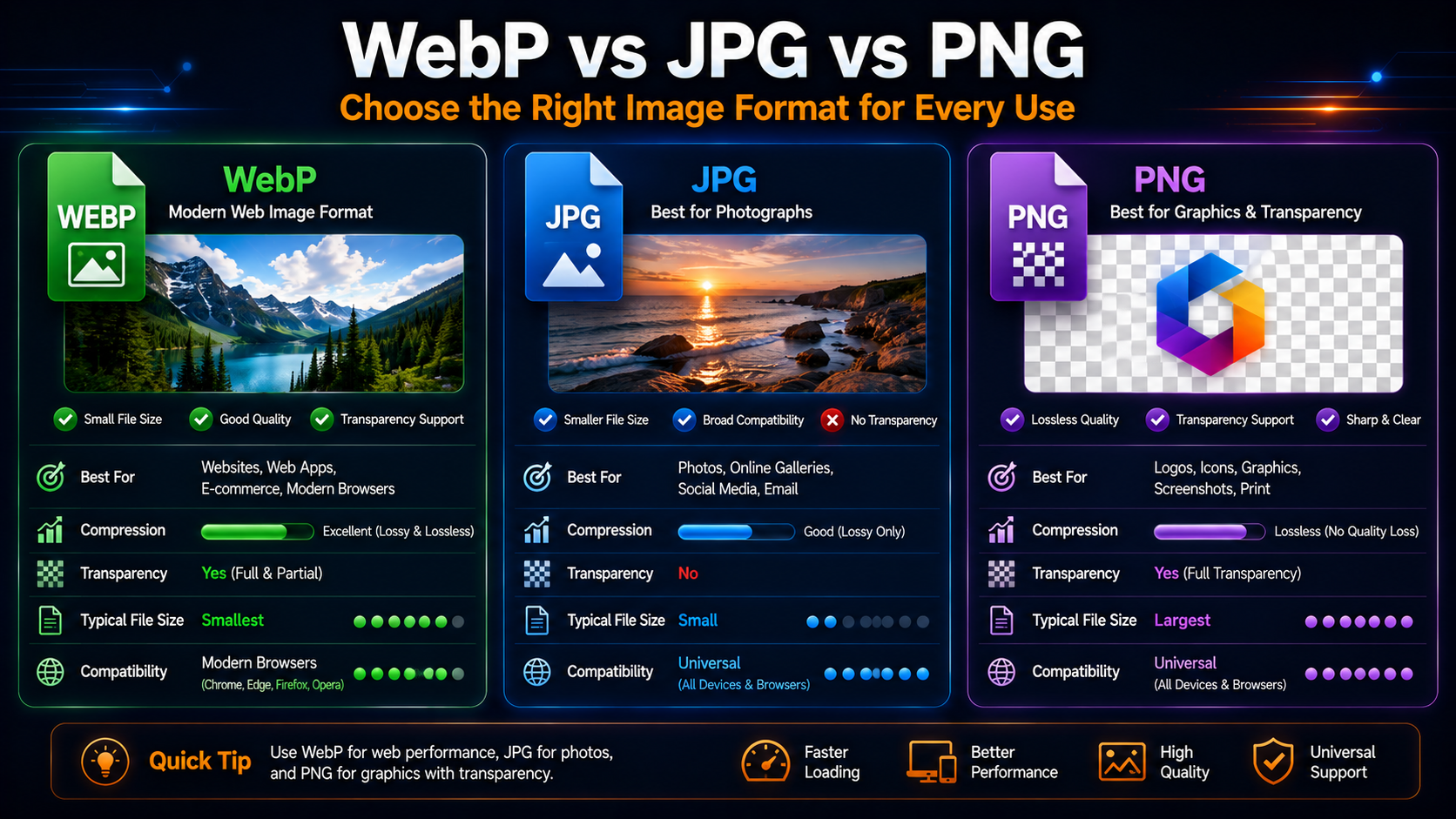
The best output format depends on what the image contains and how you plan to use it.
Choose JPG for photographs, everyday sharing and smaller files. Choose PNG when transparency, fine details or sharp graphic elements matter.
Choose JPG for photos and smaller file sizes
JPG is a practical choice for:
Photographs
Social media images
Email attachments
Website photos
Scanned images
Files that need to stay relatively small
JPG uses lossy compression, which can reduce file size significantly. It does not support transparent backgrounds.
Choose PNG for transparency and sharp graphics
PNG is better suited to:
Logos
Icons
Screenshots
Illustrations
Diagrams
Images containing text
Graphics with transparent backgrounds
PNG uses lossless compression, so it usually preserves sharp lines and detailed graphic elements more accurately. The trade-off is that PNG files are often larger than JPG files.
WebP vs JPG vs PNG comparison
There is no single best image format for every situation. The right choice depends on image type, transparency requirements, compatibility and preferred file size.
Feature | WebP | JPG | PNG |
|---|---|---|---|
Best for | Modern web images | Photos and sharing | Logos and sharp graphics |
Compression | Lossy or lossless | Lossy | Lossless |
Transparency | Yes | No | Yes |
Typical file size | Small | Small | Larger |
Compatibility | Good on modern platforms | Excellent | Excellent |
Fine text and lines | Good | May soften | Excellent |
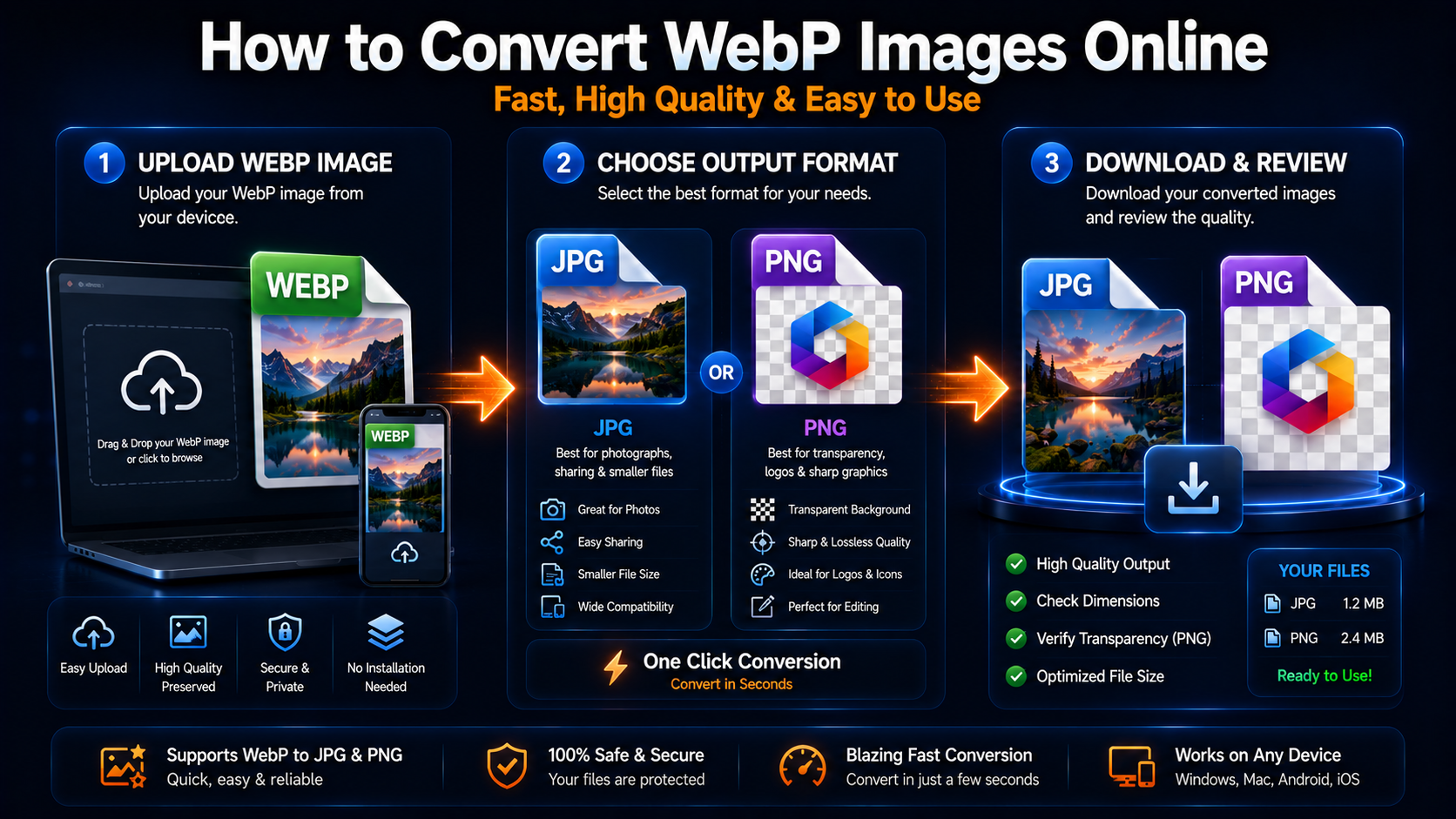
How to convert WebP to JPG online
An online converter allows you to change WebP to JPG directly through your browser. This is best when you need a widely supported image format for sharing, uploading, emailing or editing.
Step 1: Upload your WebP image
Open the WebP to JPG converter and upload the WebP image from your device.
For the best result, use the original image rather than a screenshot or previously compressed copy.
Step 2: Convert the image to JPG
The converter changes the WebP file into a JPG while preserving its visible detail, dimensions and colours as accurately as possible.
JPG is suitable when you need a practical format for websites, social media, email attachments, client uploads or older apps.
Step 3: Download the converted JPG file
Download the converted JPG and open it to check the result.
Review image clarity, colour accuracy, dimensions and file size before deleting the original WebP image.
Tip: If the converted JPG is still too large for upload, use Compress Images or Resize Image after conversion.
How to convert WebP to PNG online
Convert WebP to PNG when you need transparency, crisp graphics or a lossless output format.
Step 1: Upload the WebP file
Open the WebP to PNG converter and select the WebP file from your phone, tablet or computer.
Step 2: Convert the image to PNG
The converter processes the WebP image and creates a PNG version.
PNG is usually the better choice when the source image contains a transparent background, small text, an icon or a detailed illustration.
Step 3: Download the PNG file
Download the PNG file and confirm that transparency, sharpness and dimensions have been preserved.
Because PNG uses lossless compression, the output file may be larger than the original WebP.
When to convert WebP to JPG
JPG is the better output format when broad compatibility and smaller file size matter most.
Sharing photographs across older devices and apps
Some older devices and applications may not display WebP images correctly. JPG is recognised by almost every operating system, browser, photo viewer and editing program.
Converting WebP photos to JPG can make them easier to share with clients, colleagues, family members or customers.
Uploading images to platforms that do not support WebP
Some website builders, marketplace listings, job portals, document systems and social platforms may only accept traditional image formats.
Changing WebP to JPG can resolve upload errors without requiring specialist software.
Preparing photos for email or social media
JPG works well for personal photos, product images, travel photos and social media content.
It provides a useful balance between visual quality, compatibility and file size.
When to convert WebP to PNG
PNG is the stronger option when image detail or transparency must be preserved.
Preserving a transparent background
JPG does not support transparent backgrounds. Any transparent area may become white, black or another solid colour during conversion.
Choose PNG when converting:
Logos
Product cut-outs
Interface elements
Overlays
Watermarks
Decorative website graphics
Converting logos, icons and illustrations
Logos, icons and digital illustrations often contain clean edges, flat colours and small details.
PNG preserves these features better than JPG, which may create visible compression artefacts around sharp lines.
Maintaining sharp text and graphic elements
Screenshots, diagrams, charts and graphics containing text usually look clearer in PNG format.
JPG compression can soften fine details, particularly when the image is saved repeatedly.
Does converting WebP reduce image quality?
Image quality can change during conversion, particularly when WebP is converted to JPG. The result depends on the source image, destination format, compression level and number of previous edits.
Why JPG conversion may introduce quality loss
JPG uses lossy compression. It reduces file size by discarding some image information.
A high-quality conversion may show little visible difference, but strong compression can cause:
Blurry details
Colour banding
Blocky areas
Soft edges
Artefacts around text
Why PNG files are usually larger
PNG uses lossless compression, which preserves more image information.
This helps maintain sharp details and transparency, but it often creates a larger file than JPG or WebP. A large PNG may be suitable for editing or design work, but for website uploads you may need to compress or resize it afterwards.
Tips for maintaining the best possible output
For better conversion quality:
Use the original WebP image
Avoid converting the same image repeatedly
Choose PNG for transparency and sharp graphics
Choose JPG for photos and smaller files
Check the image after downloading
Keep an untouched copy of the original
Resize only when different dimensions are required
How to convert multiple WebP images
Converting several images is easier when the files are organised before you begin.
Organise images before conversion
Place the WebP files in a clearly named folder and remove duplicates.
Decide whether every image should become JPG or PNG. Mixing formats without a clear purpose can make file management more difficult.
Use batch conversion when available
Batch conversion allows you to process multiple WebP images in one session rather than converting each file separately.
This is useful for product catalogues, photo collections, website migrations, design assets and downloaded image folders.
Review converted files before deleting originals
Open several converted files and check:
Image quality
Transparency
File names
Dimensions
Colours
File size
Missing files
Keep the original WebP images until you are satisfied that every conversion was successful.
Key takeaways
Key Takeaways
Use JPG for photos: JPG is widely supported and usually better for everyday sharing and smaller files.
Use PNG for transparency: PNG is better for logos, icons, screenshots and sharp graphics.
WebP is efficient: It works well for modern websites, but some older tools and upload forms may still prefer JPG or PNG.
Check the converted file: Review quality, dimensions, transparency and file size before deleting the original WebP.
FAQs
Convert WebP to JPG for photographs, smaller file sizes and broad compatibility. Convert WebP to PNG for transparent backgrounds, logos, screenshots, icons and sharp graphics.
Yes. You can use a free WebP to JPG converter to upload a WebP image, convert it online and download the JPG without installing software.
Yes, provided the original WebP contains transparency and the converter preserves it. PNG supports transparent backgrounds, while JPG does not.
It can. JPG uses lossy compression, so some image data may be removed. The quality difference may be minor for photographs but more noticeable around text, lines and graphic elements.
Some online converters support batch processing. This allows several WebP files to be converted together, depending on file quantity and upload limits.
Use a trusted converter with clear privacy and security information. Avoid uploading confidential or sensitive images to unfamiliar services. You can review iConvertOnline’s Security, Privacy Policy and Terms pages before using the tool.
Yes. Online WebP converters work through mobile browsers, allowing you to upload, convert and download images on iPhone, Android and tablet devices.
JPG and JPEG refer to the same image format. The shorter “JPG” extension became common because older computer systems limited file extensions to three characters.
Convert WebP to JPG or PNG online
Need to make a WebP image easier to open, edit, upload or share?
Use iConvertOnline’s WebP to JPG converter for photos and smaller files, or WebP to PNG converter when you need transparency or sharper graphics.
You can also continue working with your files using Compress Images, Resize Image, JPG to PNG, PNG to JPG or JPG to WebP.
Private by default. Secure by design.
With iConvertOnline, your files aren't "content"—they're yours. We process millions of files, but we never own a single one.
Files are transferred via a secure, encrypted tunnel. No snooping, no interception.
We don't hold onto your data. Every file is permanently wiped from our servers 60 minutes after processing.
Your documents run in isolated containers, ensuring no unauthorized access—not even by us.
Maral Ercel
Content Writer
Experienced in researching topics and creating clear, engaging and well-structured articles. Focused on producing useful, accurate and reader-friendly content for different audiences and industries.
Updated Jul 10, 2026