
Try Our Free Tools
Convert, compress, and edit PDFs instantly in your browser.
If you want to convert PDF to JPG online, the easiest method is to use a PDF to JPG converter that turns each PDF page into an image file. This is useful when you want to share a document as an image, upload pages to a website, add them to a presentation, or send them through messaging apps without requiring a PDF reader.
A good online PDF to JPG converter helps you convert PDF pages to JPG quickly, without installing software. You can upload your PDF, convert it into JPG images, and download the converted files directly from your browser.
If you want a quick browser-based option, use iConvertOnline PDF to JPG to turn PDF pages into easy-to-share JPG images.
Why convert PDF to JPG?
PDF is ideal for preserving document layouts, but JPG is often easier to use across websites, social platforms, presentations and mobile apps. Converting PDF to JPG gives you more flexibility when you need visual copies of individual pages.
Share PDF pages as images
Sometimes you do not need to send an entire PDF. You may only want to share one page, such as a certificate, invoice, form, report page or visual document.
By converting PDF pages to JPG, you can share each page as a separate image file. This makes it easier for others to view the content without opening a PDF reader.
Use JPGs in presentations, websites and social media
JPG images work well in many places where PDFs are not always supported.
You can use converted JPG files in:
PowerPoint presentations
Google Slides
Blog posts
Website pages
Social media posts
Email campaigns
Online forms
Image galleries
This makes PDF to JPG conversion useful for marketers, students, designers, business owners and everyday users.
Improve compatibility across devices and platforms
Most devices and platforms support JPG images. Whether someone is using Windows, Mac, Android, iPhone or a web browser, JPG files are easy to open and view.
Converting PDF to JPG can also make sharing easier when a platform does not accept PDF uploads.
How to convert PDF to JPG online
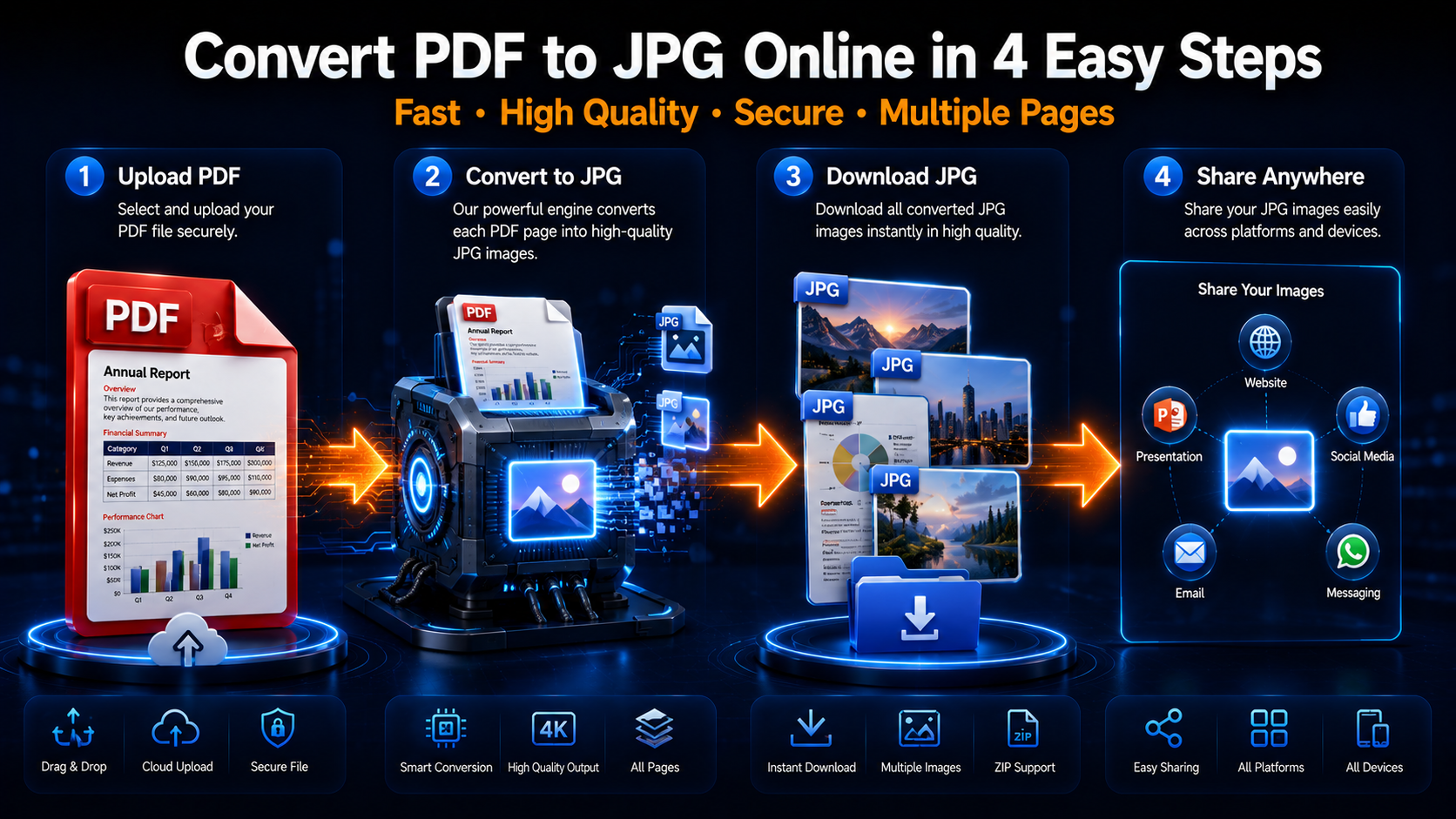
You can convert PDF to JPG online in a few simple steps. The process is quick and does not require any software installation.
Step 1: Upload your PDF file
Open the online PDF to JPG converter and upload your PDF file.
For best results, use a clear PDF with sharp text, good image quality and the correct page size. A higher-quality PDF usually creates better JPG images.
Step 2: Convert the PDF pages to JPG
The converter processes your PDF and turns each page into a JPG image.
If your PDF has multiple pages, each page can usually be converted into a separate JPG file. This is helpful when you need to share, upload or reuse individual pages.
Step 3: Download your JPG images
After conversion, download your JPG files to your device.
If multiple pages are converted, the images may be downloaded individually or grouped together, depending on how the tool handles multi-page files.
Step 4: Check image clarity before using
Before sharing or uploading the JPG files, open them and check:
Text sharpness
Image clarity
Page cropping
Colour accuracy
Page order
File size
Tip: If you only need one page from a large PDF, use Split PDF first, then convert that page to JPG. This keeps the process cleaner and avoids downloading unnecessary images.
Convert full PDF pages or extract images?
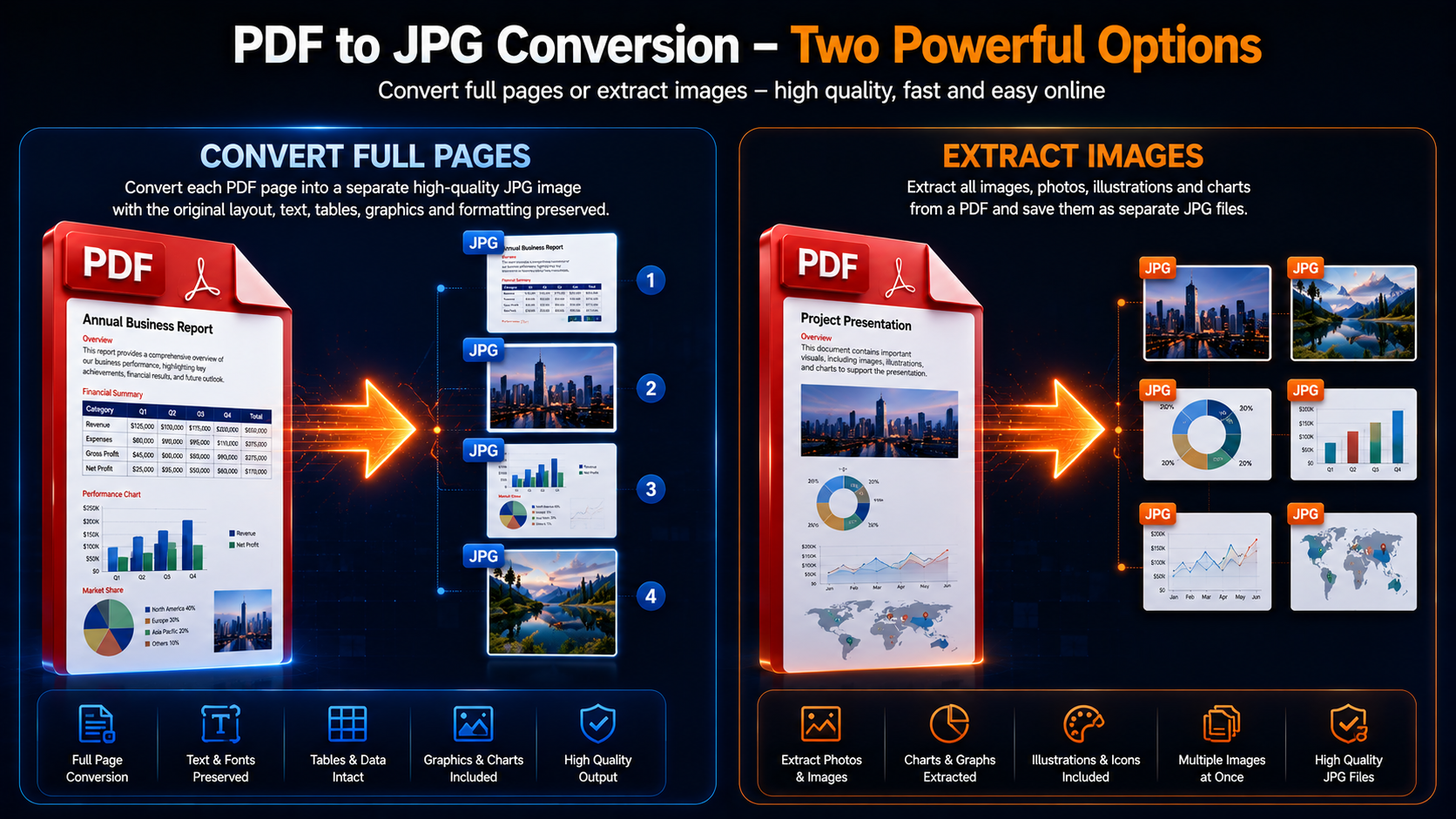
PDF to JPG conversion can mean two different things. You can either convert each full PDF page into a JPG image or extract images that are already inside the PDF.
Convert every PDF page into a JPG image
This option turns each PDF page into a separate image.
It is best when you want to preserve the full page layout, including:
Text
Images
Tables
Headers
Footers
Page design
Forms
Certificates
This is the most common option when people search for how to convert PDF to JPG online.
Extract embedded images from a PDF
Some users do not need full pages. They only want to save images that are already inside the PDF.
Image extraction is useful when the PDF contains photos, product images, graphics, charts or illustrations that you want to save separately.
Choose the right option for your needs
Choose full-page conversion if you want every PDF page as a JPG.
Choose image extraction if you only need the pictures inside the PDF.
If you need a different workflow, you can also use PNG to PDF, JPG to PDF or image converters such as JPG to PNG, depending on how you want to use the final file.
Benefits of using an online PDF to JPG converter
An online PDF image converter is useful because it works directly in your browser and keeps the process simple.
No software installation required
You do not need to download or install desktop software. This saves time and makes the tool easier to use on shared, work or school devices.
Fast conversion from any device
Online PDF to JPG conversion is quick for everyday files. You can upload a PDF, convert it, and download the JPG images within a short time.
This is helpful when you need images for a presentation, website update, email, social post or online form.
Works on Windows, Mac, Android and iPhone
Because the converter works in a browser, it can be used across common devices and operating systems.
You can convert PDF to JPG on:
Windows laptops
Mac computers
Android phones
iPhones
Tablets
Chromebooks
Simple sharing and uploading
JPG files are easy to attach, upload and preview. Many platforms that do not support PDF uploads will accept JPG images without trouble.
Tips for high-quality PDF to JPG conversion
The quality of your JPG images depends on the original PDF and the conversion settings used.
Use a high-resolution PDF
A high-resolution PDF creates clearer JPG images. If the original PDF is blurry, compressed or low quality, the converted JPG may also look unclear.
For sharp results, use the original exported PDF instead of a screenshot or scanned copy where possible.
Avoid repeated conversions
Converting files again and again can reduce image quality.
For example, converting PDF to JPG, then compressing the JPG heavily, then resizing it repeatedly may make the final image look blurry or pixelated.
Keep the original converted JPG file whenever possible.
Check page cropping and image clarity
After downloading, open the JPG images and check that no important content has been cropped or softened.
Pay close attention to small text, logos, charts, signatures and fine lines.
Compress or resize only if needed
If the JPG images are too large for upload, use Compress Images or Resize Image after conversion.
Only reduce size as much as needed, especially if the image contains small text.
Common uses for PDF to JPG conversion
PDF to JPG conversion is useful for personal, educational and business tasks.
Sharing documents on social media
Most social media platforms work better with images than PDFs. Converting a PDF page to JPG makes it easier to share flyers, notices, menus, certificates, announcements and event details.
Creating presentation slides
If you have a PDF page that needs to appear in a presentation, converting it to JPG can make it easier to insert into PowerPoint or Google Slides.
This helps preserve the visual layout of the page.
Adding images to websites and blogs
Websites and blog editors usually support JPG images more easily than PDF files.
You can convert a PDF page into JPG and upload it as a visual element in a blog post, landing page or online guide.
Archiving visual copies of documents
JPG files can be useful when you need a visual copy of a document page for reference.
Examples include receipts, certificates, signed forms, invoices and scanned records.
Sending images through messaging apps
Some messaging apps display images more smoothly than PDF attachments.
Converting a PDF page to JPG makes it easier to send document visuals through chat apps, especially when the recipient only needs to view the content quickly.
Key takeaways
Key Takeaways
PDF to JPG converts pages into images: Each PDF page can become a separate JPG file.
JPG is widely supported: It works well on websites, social platforms, mobile devices and messaging apps.
Source quality matters: A clear, high-resolution PDF creates sharper JPG images.
Review before sharing: Check text sharpness, page cropping, colour accuracy and file size after conversion.
FAQs
Yes, many online tools allow you to convert PDF to JPG for free. You can upload a PDF, convert the pages into JPG images, and download the results without installing software.
The image quality depends on the original PDF and conversion settings. A clear, high-resolution PDF usually converts into a sharp JPG. Low-quality scans or compressed PDFs may produce less detailed images.
Yes. If you only need one page, you can use Split PDF first, then convert that selected page with PDF to JPG.
Yes, but image extraction is different from full-page PDF to JPG conversion. Full-page conversion turns each PDF page into a JPG, while image extraction saves images that are already embedded inside the PDF.
Yes, online PDF to JPG converters work in mobile browsers. You can convert PDF to JPG on iPhone, Android, tablets and other devices without installing software.
Use trusted online tools and avoid uploading highly sensitive documents to unknown websites. You can review iConvertOnline’s Security, Privacy Policy and Terms pages before using the tool.
JPG is usually better for photos, scanned pages and smaller file sizes. PNG is better for sharp graphics, transparent backgrounds and images that need higher visual precision. For most PDF page conversions, JPG is a practical and widely supported option.
Convert PDF to JPG online
Need to turn PDF pages into shareable image files?
Use iConvertOnline’s PDF to JPG converter to convert your PDF pages into JPG images directly in your browser.
You can also continue working with your files using JPG to PDF, PNG to PDF, Split PDF, Compress Images or Resize Image.
Related tools
PDF to JPG – Convert PDF pages into JPG images.
JPG to PDF – Convert JPG images back into PDF format.
PNG to PDF – Convert PNG images into PDF files.
Split PDF – Extract selected PDF pages before conversion.
Compress Images – Reduce image file size after converting.
Resize Image – Adjust JPG dimensions for websites, uploads and forms.
Written by Zaggy K, founder of iConvertOnline. Reviewed for accuracy and updated March 2026.
Private by default. Secure by design.
With iConvertOnline, your files aren't "content"—they're yours. We process millions of files, but we never own a single one.
Files are transferred via a secure, encrypted tunnel. No snooping, no interception.
We don't hold onto your data. Every file is permanently wiped from our servers 60 minutes after processing.
Your documents run in isolated containers, ensuring no unauthorized access—not even by us.

Zaggy K
Updated Jul 7, 2026