
How to Convert AVIF to JPG or PNG Online
Learn how to convert AVIF to JPG or PNG online, compare formats, preserve transparency and maintain image quality across devices and platforms.
Learn how to convert AVIF to JPG or PNG online, compare formats, preserve transparency and maintain image quality across devices and platforms.
Try Our Free Tools
Convert, compress, and edit PDFs instantly in your browser.
If you want to convert AVIF to JPG or PNG online, upload the AVIF image to a compatible converter, choose your preferred output format, start the conversion, and download the new file. JPG is generally better for photographs, everyday sharing and smaller files, while PNG is more suitable for transparent backgrounds, logos, screenshots and graphics containing sharp details.
AVIF is a modern image format used by many websites because it can deliver strong visual quality at smaller file sizes. The problem is that some older apps, upload forms, email systems and editing tools may still prefer traditional formats like JPG or PNG.
If your AVIF image will not open, upload or edit properly, converting it to JPG or PNG can make it easier to share, use and manage across different platforms.
AVIF is a modern image format designed to deliver strong visual quality at relatively small file sizes. It is commonly used for web images because it can compress photographs and graphics more efficiently than many older formats.
AVIF uses advanced image compression to store visual information efficiently. It can support:
Lossy compression
Lossless compression
Transparency
High dynamic range
Wide colour ranges
Still and animated images
Lossy AVIF files prioritise smaller file sizes, while lossless AVIF files preserve more of the original image information.
AVIF can help website owners reduce image file sizes while maintaining good visual quality. Smaller images may improve loading speed, reduce bandwidth use and make image-heavy pages more efficient.
AVIF is often used for:
Product photographs
Blog images
Website banners
Galleries
Thumbnails
Illustrations
Marketing graphics
AVIF support has improved, but some older applications, upload systems and editing programs may still have difficulty opening or processing the format.
You may need to convert an AVIF image when:
An app cannot open the file
A website rejects the upload
Editing software has limited AVIF support
A client requests JPG or PNG
You need a format that works across more devices
An email or messaging platform does not display the image correctly
The best output format depends on what the image contains and how you plan to use it.
Choose JPG for photographs, smaller files and broad compatibility. Choose PNG when transparency, sharp edges or lossless image data matters more.
JPG is a practical choice for:
Photographs
Product images
Social media posts
Email attachments
Website photos
Messaging apps
General file sharing
JPG files are widely supported and usually smaller than PNG files. However, JPG does not support transparent backgrounds and uses lossy compression.
PNG is usually better for:
Logos
Icons
Screenshots
Interface graphics
Illustrations
Diagrams
Images containing text
Transparent backgrounds
PNG uses lossless compression, which helps preserve fine details and clean edges. The resulting file may be larger than JPG or AVIF.
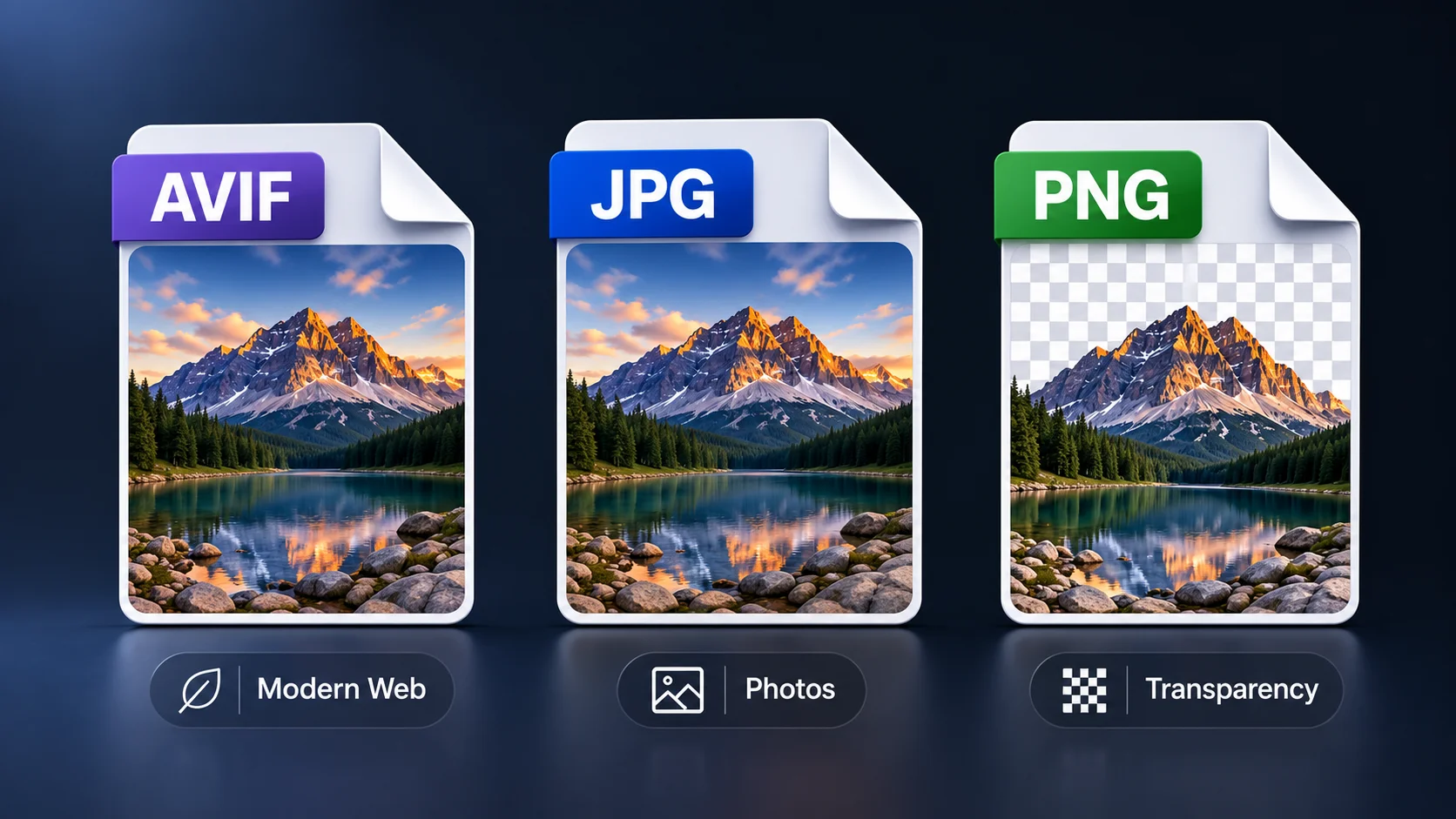
There is no single best format for every image. Choose the format that matches your intended use.
Feature | AVIF | JPG | PNG |
|---|---|---|---|
Best for | Modern web images | Photos and everyday sharing | Logos, graphics and transparency |
Compression | Lossy or lossless | Lossy | Lossless |
Transparency | Supported | Not supported | Supported |
Typical file size | Small | Small | Larger |
Compatibility | Strong on modern platforms | Excellent | Excellent |
Sharp text and graphics | Very good | May soften | Excellent |
An online AVIF to JPG converter lets you change the image format through a browser. This is useful when you need a widely supported file for sharing, uploading, emailing or editing.
Open the converter and upload the AVIF image from your device.
For the best result, use the original AVIF file rather than a screenshot, thumbnail or previously compressed copy.
Choose JPG or JPEG as the destination format.
JPG is suitable when you need a practical image format for websites, social media, email attachments, product listings, client uploads or older apps.
Begin the conversion and allow the tool to process the image.
The converter creates a JPG version while attempting to preserve the original colours, dimensions and visible detail.
Download the converted JPG and check:
Image clarity
Colours
Dimensions
Cropping
File size
Fine details
Keep the original AVIF file until you are satisfied with the result.
Tip: If the converted JPG is still too large for upload, use Compress Images or Resize Image after conversion.
Use an AVIF to PNG converter when you need transparency, sharp graphic elements or lossless output.
Select the AVIF image from your computer, tablet or mobile device.
Use the original image whenever possible for the cleanest result.
Choose PNG as the destination format.
PNG is especially useful for logos, screenshots, interface graphics, diagrams, icons and images with transparent backgrounds.
Start the conversion and wait for the new PNG file to be created.
A suitable converter should preserve transparency when the original AVIF image contains it.
Download the PNG and confirm that:
Transparency remains intact
Text and edges look sharp
Colours appear correct
Dimensions match the original
No part of the image is missing
The PNG file may be larger than the original AVIF because PNG uses a different compression method.
JPG is useful when compatibility and manageable file size are your main priorities.
JPG is supported by most operating systems, browsers, photo viewers and editing programs.
Converting AVIF to JPG can make the image easier to open on older devices or inside applications with limited AVIF support.
Some website builders, online forms, marketplaces and content systems may only accept traditional image formats.
Changing AVIF to JPG can resolve upload errors and improve compatibility.
JPG works well for email, cloud storage and messaging apps because it is widely recognised and usually compact.
Older editing applications may not support AVIF files directly. Converting to JPG can make photo editing easier without requiring new software.
Product listings, advertising systems and social platforms often work smoothly with JPG files.
JPG is a practical choice for product photos, campaign images and promotional content.
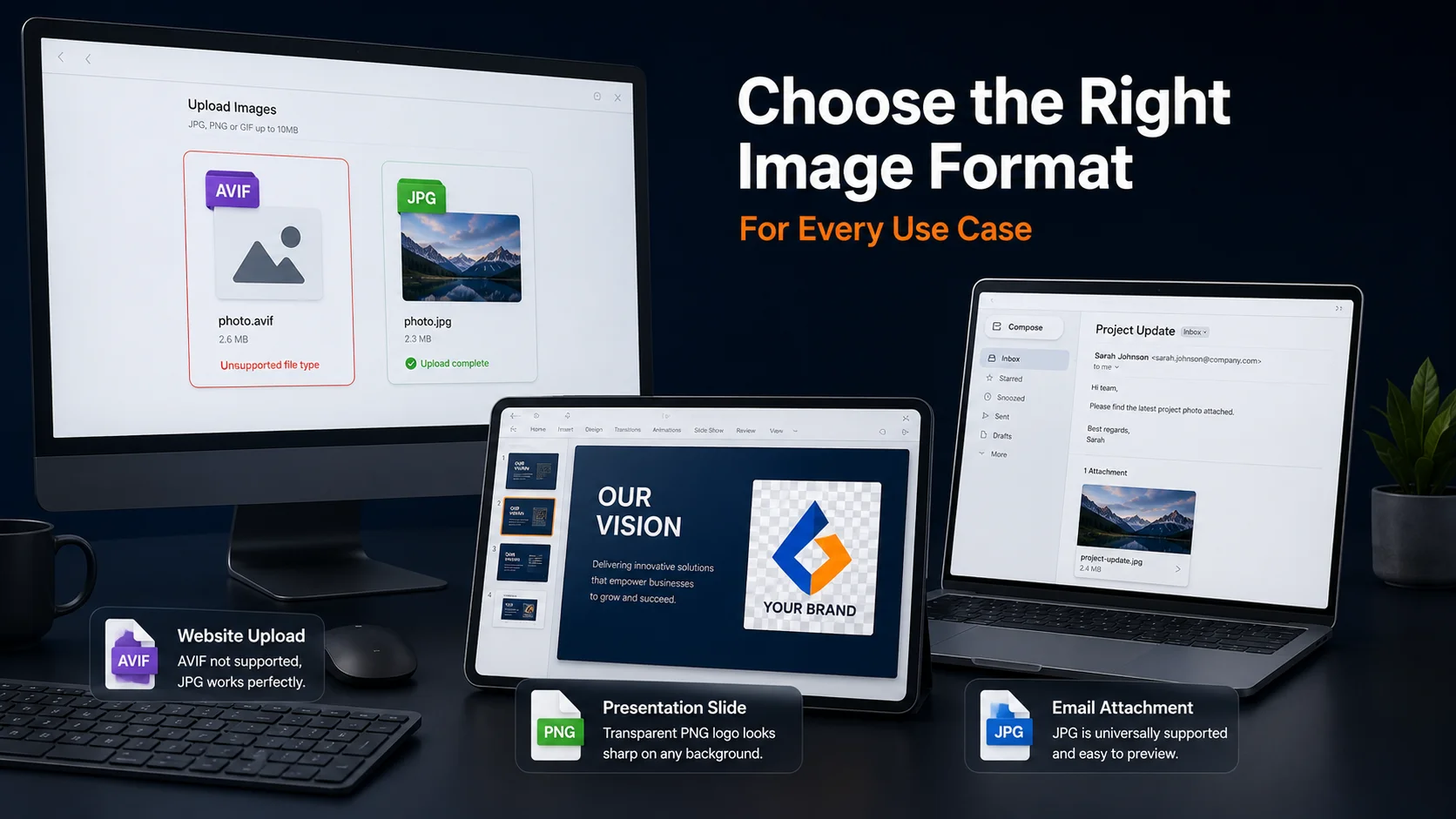
PNG is a stronger option when image detail and transparency must be preserved.
If the original AVIF contains transparency, converting it to PNG can retain the transparent background.
JPG cannot preserve transparency.
PNG helps maintain clean edges, flat colours and small graphic details. This makes it suitable for logos, icons and interface elements.
Many design programs support PNG reliably. Converting AVIF to PNG can make the image easier to edit while retaining strong visual quality.
PNG uses lossless compression, so it does not remove image data in the same way as JPG.
This can be useful when the image will be edited or saved again later.
Screenshots, diagrams and graphics containing small text often look sharper in PNG than JPG.
Understanding the differences between these formats can help you choose the right output.
AVIF can offer efficient compression with strong visual quality. JPG also creates relatively small files, but repeated saving may reduce quality.
PNG preserves image information through lossless compression, although the files are often larger.
AVIF and PNG can support transparent backgrounds.
JPG cannot. Transparent areas may be replaced with a solid colour during JPG conversion.
AVIF often creates smaller files than JPG or PNG at a similar visual quality.
JPG usually produces smaller files than PNG, particularly for photographs.
JPG and PNG remain the most widely supported image formats.
AVIF works well across many modern platforms, but conversion may still be helpful for older apps, devices and upload systems.
Use AVIF: Modern web performance when AVIF is supported.
Use JPG: Photographs, email, social media and everyday sharing.
Use PNG: Transparency, logos, screenshots, diagrams and images containing sharp text.
The quality of the converted file depends on the source image, output format and conversion settings.
Use the original AVIF image rather than a screenshot, thumbnail or heavily compressed copy.
A converter cannot restore detail that is missing from the source file.
Repeated resizing can soften details and reduce clarity.
Keep the original dimensions unless a specific size is required. If you need different dimensions after conversion, use the Resize Image tool once rather than repeatedly resizing the file.
PNG is usually the better choice for logos, icons, screenshots and graphics containing small text.
JPG works well for photographs because minor compression is often less noticeable in complex photographic details.
Open the converted file and compare it with the original.
Check:
Colour accuracy
Fine details
Sharp edges
Image dimensions
Transparency
File size
Do not delete the original until the converted images have been checked carefully.
The AVIF file may also be useful for future website optimisation or further conversions.
Some online tools support batch conversion for multiple AVIF files. This is useful when you need to process a full image folder instead of one file at a time.
Batch conversion can save time when working with:
Product catalogues
Photo collections
Website migrations
Marketing assets
Downloaded image folders
Design libraries
Place the AVIF images in a clearly labelled folder and remove duplicates.
Consistent filenames make the converted files easier to manage.
Check several files after conversion to confirm that colours, dimensions and quality remain consistent.
Pay close attention to transparency when converting to PNG.
Online conversion works through a browser, making it accessible across common devices.
Open the converter in a browser, upload the AVIF file, choose JPG or PNG, and download the result.
The same browser-based process works on Mac devices without additional desktop software.
Use a mobile browser to upload the image from local storage, convert it, and save the new file.
Open the online converter in Safari or another browser, select the AVIF image, and download the converted version to the Files or Photos app.
An online AVIF converter removes the need for software installation, updates or device-specific programs.
This is useful for occasional conversions or shared devices.
Confirm that the file is a valid AVIF image and has not been corrupted. Try uploading the original file rather than a renamed copy.
Use the highest-quality source image and avoid enlarging the JPG after conversion.
Strong compression or repeated editing can also reduce clarity.
PNG uses lossless compression and often creates larger files than AVIF.
Use Compress Images if you need a smaller file for the web, an online form or email attachment.
Make sure you converted the AVIF to PNG rather than JPG.
Transparency cannot be preserved in JPG format.
Colour changes may occur when applications interpret colour profiles differently.
Compare the image in more than one viewer before making further edits.
JPG and standard PNG files usually store a single still image.
When converting an animated AVIF, the converter may only save one frame.
Key Takeaways
Use JPG for photos: JPG is widely supported and usually better for everyday sharing and smaller files.
Use PNG for transparency: PNG is better for logos, icons, screenshots and sharp graphic elements.
AVIF is efficient: It is great for modern web performance, but some older tools and upload forms may still require JPG or PNG.
Keep the original: Review the converted file before deleting the source AVIF image.
Upload the AVIF image to the AVIF to JPG converter, start the conversion, and download the finished JPG file.
Upload the AVIF file to the AVIF to PNG converter, convert the image, and download the new PNG file.
JPG is better for photographs, sharing and smaller files. PNG is better for transparency, logos, screenshots and sharp graphics.
It can. JPG uses lossy compression, which removes some image information. The difference may be minor for photographs but more noticeable around text and sharp edges.
Yes, provided the original AVIF contains transparency and the converter preserves it.
Yes. Browser-based converters can be used on Android phones, iPhones, iPads and tablets.
Some converters support batch conversion. File quantity and upload limits depend on the tool.
AVIF is a newer image format that can provide strong compression and support transparency. JPG is older, more widely supported and commonly used for photographs.
PNG uses lossless compression and often stores more image data. AVIF can compress similar content more efficiently.
Yes, but JPG and standard PNG outputs are usually static. The converter may export only one frame from the animation.
Need to make an AVIF image easier to open, edit, upload or share?
Use the AVIF to JPG converter for photographs and broad compatibility, or choose the AVIF to PNG converter when transparency and sharp graphic detail matter. You can also use the AVIF to PDF converter when you need to place an AVIF image into a shareable document.
After conversion, use JPG to PNG or PNG to JPG if you later need to switch between the two formats.
AVIF to JPG – Convert AVIF photographs and web images into widely supported JPG files.
AVIF to PNG – Convert AVIF graphics while preserving transparency and sharp details.
AVIF to PDF – Convert an AVIF image into a PDF for sharing, printing or document storage.
Compress Images – Reduce image file size after conversion.
Resize Image – Change image dimensions for websites, forms and social media.
JPG to PNG – Convert JPG files into PNG format when sharper graphics are needed.
PNG to JPG – Convert PNG images into smaller, widely compatible JPG files.
JPG to PDF – Turn converted JPG images into a shareable PDF document.
PNG to PDF – Convert PNG images into PDF format for printing or document storage.
Written by Zaggy K, founder of iConvertOnline. Reviewed for accuracy and updated March 2026.
Private by default. Secure by design.
With iConvertOnline, your files aren't "content"—they're yours. We process millions of files, but we never own a single one.
Files are transferred via a secure, encrypted tunnel. No snooping, no interception.
We don't hold onto your data. Every file is permanently wiped from our servers 60 minutes after processing.
Your documents run in isolated containers, ensuring no unauthorized access—not even by us.

