
Try Our Free Tools
Convert, compress, and edit PDFs instantly in your browser.
If you want to convert PDF to PNG without losing quality, start with a high-quality PDF, use a reliable converter, and choose the highest practical output resolution. PNG is an excellent image format for preserving sharp text, diagrams, screenshots and graphics, making it ideal when clarity matters.
This is useful when you need to turn PDF pages into high-quality images for websites, presentations, documents, design work or online sharing. A clear source PDF usually produces a sharper PNG, while scanned or blurry PDFs may need extra care.
If your goal is to turn document pages into images, PNG is usually the better choice for text-heavy pages and graphics. If you need smaller photo-style images instead, use iConvertOnline PDF to JPG.
Why convert a PDF to PNG?
PDF files are designed to preserve document layouts, while PNG is an image format known for sharp detail and lossless compression. Converting PDF pages to PNG allows you to use document content as images while keeping text and graphics clear.
Preserve sharp text, graphics and illustrations
PNG uses lossless compression, which helps preserve fine details such as:
Small text
Charts
Logos
Diagrams
Technical drawings
Screenshots
Line art
This makes PNG a strong choice for documents containing text, diagrams and graphics.
Turn PDF pages into easy-to-share images
Instead of sending an entire PDF, you can convert individual pages into PNG images for quicker sharing through messaging apps, email, cloud storage or website uploads.
Use PDF content on websites and social media
Many websites, content management systems and social media platforms work better with images than PDF files.
Converting PDF pages to PNG makes it easier to:
Add images to blog posts
Upload graphics to websites
Share announcements on social media
Include visuals in online articles
Reuse document pages in presentations
Open document pages without a PDF reader
PNG images can be opened on almost every computer, tablet and smartphone without requiring dedicated PDF software.
This makes document pages easier to view on a wide range of devices.
How to convert PDF to PNG without losing quality online
Modern PDF to PNG converters make it simple to create high-resolution images from PDF pages. The most important part is starting with a clean PDF and checking the output before using the images.
Step 1: Upload the PDF file
Open your PDF to PNG converter and upload your PDF.
For best results, use the original exported PDF rather than a scanned copy, screenshot or low-quality image of a document.
Step 2: Select PNG as the output format
Choose PNG as your destination format.
PNG is recommended for documents containing sharp text, graphics, logos, screenshots, diagrams and illustrations.
Step 3: Start the PDF to PNG conversion
Begin the conversion. The converter processes each PDF page and generates PNG images while preserving as much detail as possible.
Multi-page PDFs are usually exported as separate PNG files, with one image for each page.
Step 4: Download the converted PNG images
Once the conversion finishes, download the PNG images to your device.
Keep the original PDF until you have checked every converted image and confirmed the quality is suitable.
Step 5: Check image dimensions and clarity
Before using the PNG images, review:
Text clarity
Image sharpness
Colours
Dimensions
Page order
Cropping
Tip: If you only need one page from a large PDF, use Split PDF first. This helps you convert only the page you need instead of processing the full document.
What determines PDF to PNG image quality?
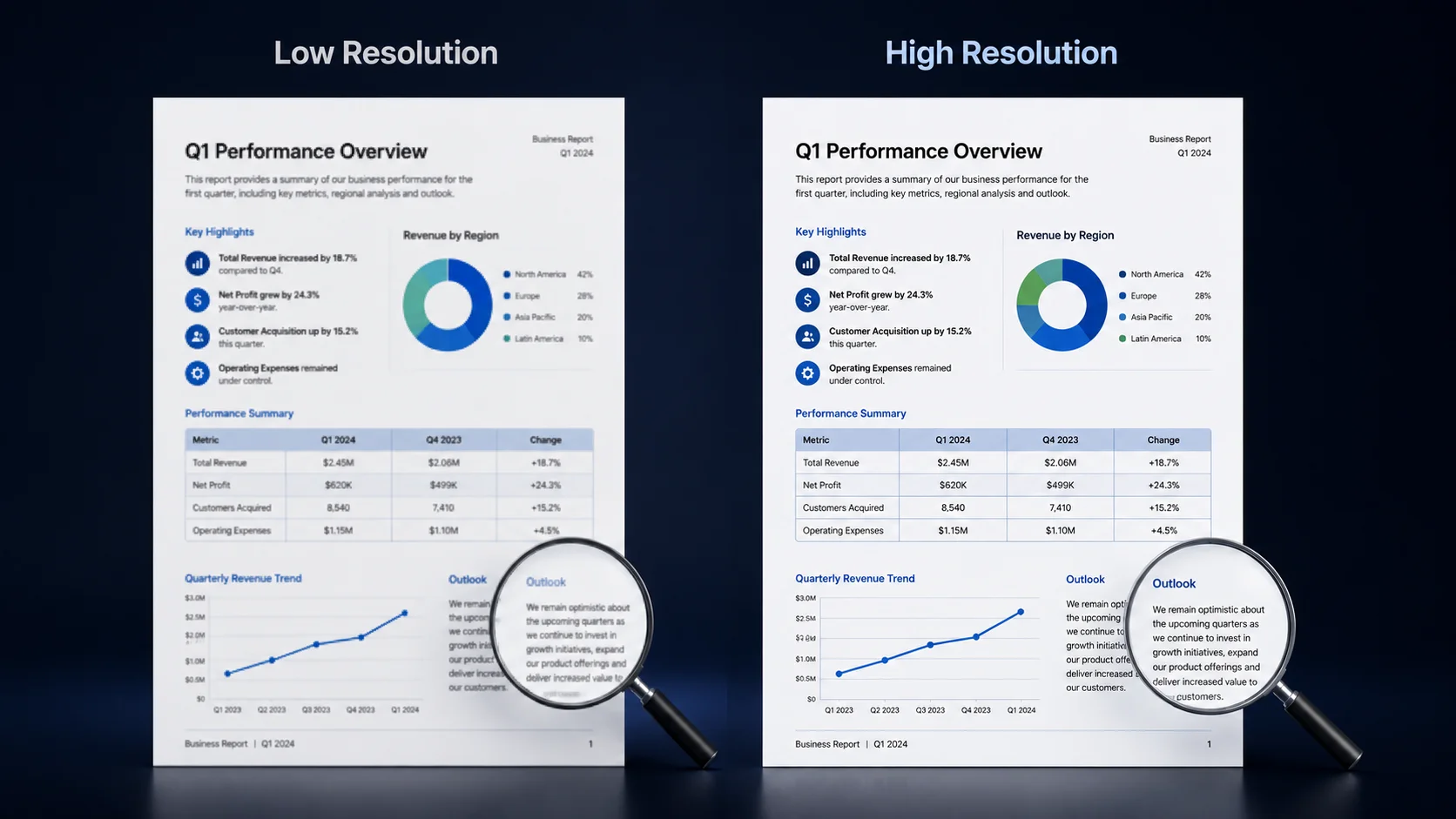
Several factors influence the quality of the final PNG images. The converter matters, but the original PDF matters even more.
Resolution of the original PDF
A high-quality PDF usually produces a higher-quality PNG.
If the original PDF contains low-resolution images or blurred text, the converted PNG cannot restore missing detail.
Text-based PDFs vs scanned documents
Text-based PDFs generally produce sharper PNG images because the text comes from digital content.
Scanned documents rely on scan quality, which can affect readability after conversion.
Image compression in the source file
If images inside the PDF have already been heavily compressed, the converted PNG will show the same limitations.
Starting with the original document usually produces the best result.
Page dimensions and output resolution
Larger pages often require higher output resolution to keep text and details readable.
If your converter allows different output resolutions, choose a setting that matches how the PNG will be used.
Quality of embedded images and graphics
Charts, logos, screenshots and illustrations can only appear as sharp as the originals embedded inside the PDF.
Poor-quality graphics will still look poor after conversion.
How to convert PDF to high-resolution PNG
If image quality is your priority, prepare the file properly before converting and avoid unnecessary processing afterwards.
Start with the highest-quality source PDF
Always use the original exported PDF rather than a scanned copy whenever possible.
Native PDFs usually preserve text and graphics more accurately.
Avoid unnecessary resizing before conversion
Resizing a PDF or converting it multiple times may reduce visual quality.
Convert directly from the original file where possible.
Use higher output resolution when available
If the converter allows you to choose image resolution or DPI, select the highest setting that matches your intended use.
Higher resolution produces clearer images, but it also increases file size.
Review small text and detailed graphics
Zoom into the converted PNG and inspect:
Small text
Tables
Charts
Technical diagrams
Logos
Icons
Keep the original PDF as a backup
Do not delete the original PDF until you have confirmed that every PNG image meets your expectations.
What is DPI and why does it matter?
DPI plays an important role when converting PDFs into image files, especially when the PNG images will be printed or used in detailed layouts.
Understanding DPI and image resolution
DPI stands for dots per inch and describes the resolution of printed or exported images.
Higher DPI usually produces more detailed images, but it also increases file size.
Choosing a suitable DPI for screens
For most websites, presentations and screen viewing, around 72 to 150 DPI is usually sufficient.
Higher resolutions may increase file size without providing a noticeable benefit on standard displays.
Choosing a suitable DPI for printing
If the PNG images will be printed, around 300 DPI is commonly recommended to maintain sharp text and graphics.
Why increasing DPI cannot restore missing detail
Increasing DPI cannot recreate information that does not exist in the original PDF.
If the source document is blurry, increasing resolution simply enlarges the existing blur.
Can you convert individual PDF pages to PNG?
Yes. Most PDF to PNG workflows allow flexible page conversion options, especially when you prepare the PDF first.
Convert one selected page
If you only need one page, split or extract that page before converting.
You can use Split PDF to separate the page you need, then convert that smaller file.
Convert every PDF page into a separate PNG
Multi-page PDFs are typically exported as separate PNG images, making individual pages easier to organise and share.
Organise and rename exported page images
After downloading, rename the PNG files using meaningful names rather than generic page numbers.
This makes them easier to locate later.
PDF vs PNG: which format has better quality?
Neither format is universally better. Each serves a different purpose.
PDF quality for documents and vector content
PDF preserves vector graphics, fonts and document structure without converting them into pixels.
This makes PDF the preferred format for archiving, printing and sharing documents.
PNG quality for text, screenshots and graphics
PNG preserves fine image detail and sharp edges after conversion, making it well suited to screenshots, diagrams, charts and web graphics.
Why converting vector content creates raster images
When converting PDF pages into PNG, vector elements become raster images.
The final quality depends on the chosen resolution and the original document.
When to keep the original PDF instead
Keep the PDF if you need:
Editable text
Searchable documents
Smaller document storage
Professional printing
Vector graphics
PDF to PNG vs PDF to JPG
Both PNG and JPG can turn PDF pages into images, but they are best suited to different use cases.
Choose PNG for sharp text and graphics
PNG is usually better for:
Documents
Logos
Charts
Diagrams
Screenshots
Technical illustrations
Choose JPG for photographs and smaller files
JPG is generally better for photographs where reducing file size is more important than preserving every detail.
If you need JPG output instead, use PDF to JPG.
Compare transparency, compression and file size
Feature | PNG | JPG |
|---|---|---|
Compression | Lossless | Lossy |
Transparency | Supported | Not supported |
Text quality | Excellent | Good |
Graphics | Excellent | Good |
File size | Larger | Smaller |
How to avoid blurry text during conversion
Blurry text usually comes from the source PDF or low output resolution rather than the PNG format itself.
Use a text-based PDF instead of a low-quality scan
Native PDFs almost always produce sharper PNG images than scanned documents.
Avoid enlarging the converted PNG
Enlarging an image beyond its original size reduces sharpness.
Export at an appropriate resolution instead.
Check the original page resolution
If the original PDF contains low-resolution content, the converted PNG will reflect those limitations.
Do not repeatedly convert or compress the image
Repeated conversions may gradually reduce visual quality.
Keep the original converted PNG whenever possible.
Use PNG instead of JPG for text-heavy pages
PNG preserves small text and sharp edges more effectively than JPG.
For reports, diagrams and forms, PNG is generally the better choice.
How to optimise converted PNG files for the web
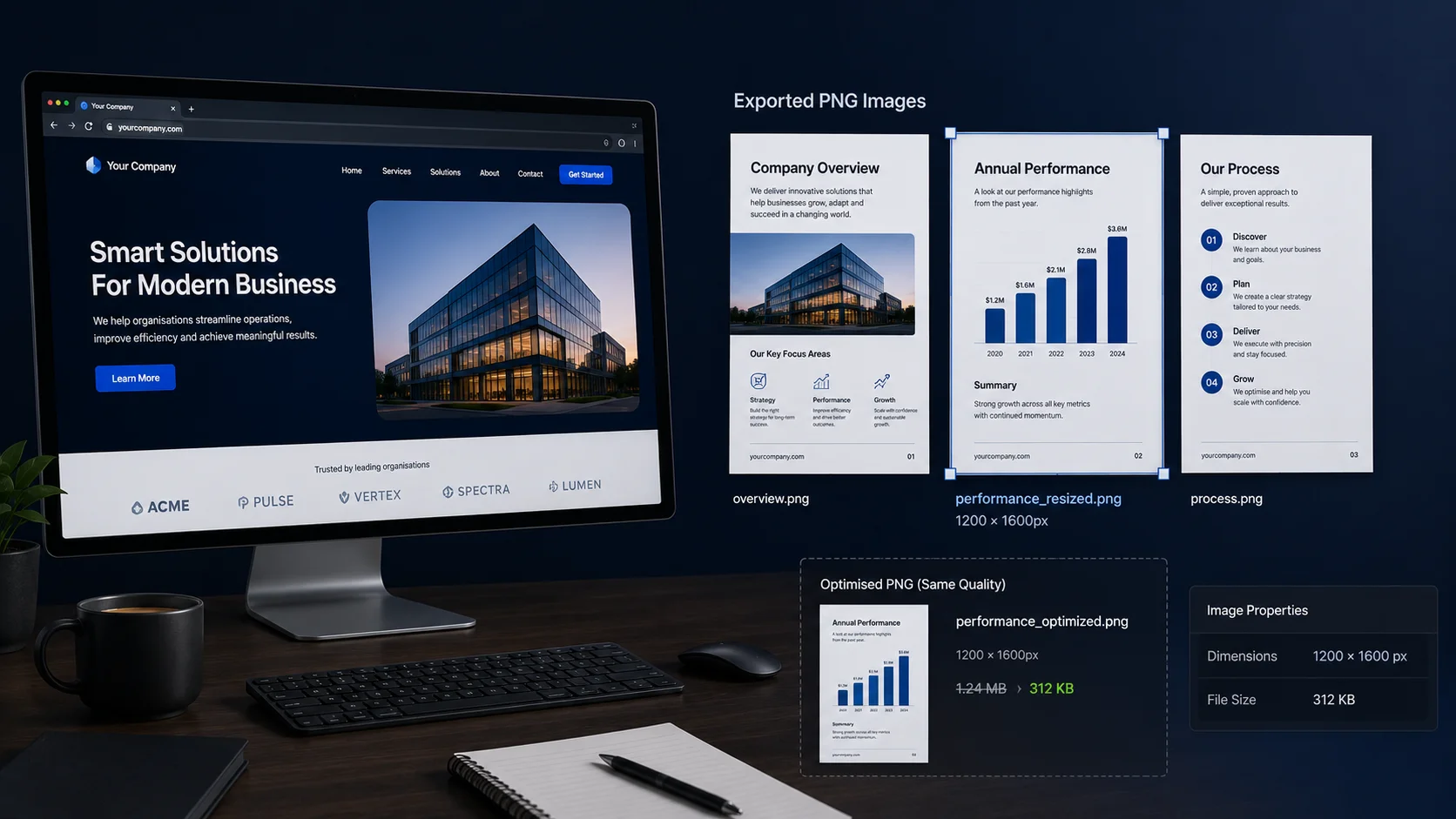
Large PNG images may need optimisation before publishing online. The goal is to reduce file size without making text or graphics hard to read.
Resize images to the required display dimensions
Resize images only to the dimensions required for your website, app or upload platform.
Oversized images increase loading time unnecessarily. Use Resize Image if you need to adjust dimensions.
Compress PNG files carefully
Use image compression tools that reduce file size without noticeably affecting visual quality.
You can use Compress Images after conversion if the PNG files are too large.
Use descriptive filenames
Choose filenames that clearly describe the image content.
This improves organisation and may also help with image SEO when publishing online.
Add useful alt text when publishing images
When uploading PNG images to websites, write descriptive alt text that explains the image naturally.
Keep readable text and sufficient contrast
Ensure text remains readable after resizing or compression.
Review the final image on both desktop and mobile devices.
Common PDF to PNG problems and solutions
The converted PNG looks blurry
Start with a higher-quality PDF and use the highest practical output resolution.
Small text is difficult to read
Increase the export resolution or use a clearer source PDF.
Colours look different from the original PDF
Colour differences may occur because different applications manage colour profiles differently.
The PNG file is too large
Resize the image or compress the PNG after conversion while preserving acceptable quality.
Some PDF pages are missing
Check whether all pages were selected before starting the conversion.
A password-protected PDF cannot be converted
Password-protected PDFs may need to be unlocked before conversion if you have permission to access the document. Use Unlock PDF first if needed.
Key takeaways
Key Takeaways
PNG is best for clarity: Use PNG for PDF pages with text, diagrams, screenshots, charts and graphics.
Source quality matters: A blurry or low-resolution PDF cannot become sharp just by converting it.
Higher resolution helps: Use a suitable output resolution for presentations, websites or printing.
Optimise after conversion: Resize or compress large PNG files only after checking image quality.
FAQs
Yes. Using a high-quality source PDF and a reliable PDF to PNG converter helps preserve sharp text, graphics and images.
Not necessarily. The final quality depends on the source PDF, output resolution and conversion settings.
Yes. Many PDF to PNG converters support high-resolution output suitable for presentations, printing and detailed graphics.
Yes. If you only need one page, split or extract that page first, then convert it to PNG.
Yes. Multi-page PDFs are commonly exported as individual PNG files.
Yes, provided you have permission and can unlock the document before conversion.
Blurry PNG files are usually caused by low-resolution source PDFs, scanned documents, or exporting at a low resolution.
PDF preserves vector content and document structure, while PNG preserves high-quality raster images. Each format is designed for different purposes.
PNG is generally better for text, diagrams and graphics. JPG is usually better for photographs and smaller file sizes.
Yes. Most online PDF to PNG converters work on Android phones, iPhones and tablets through a web browser.
Convert PDF to PNG without losing quality online
Need sharp PNG images from your PDF pages?
Use a reliable PDF to PNG converter to turn PDF pages into clear PNG images for websites, presentations, design work and sharing. If iConvertOnline adds a dedicated PDF to PNG tool, this section should link directly to that tool page.
You can also continue working with files using Split PDF, PDF to JPG, Compress Images, Resize Image or Unlock PDF.
Related tools
PDF to JPG – Convert PDF pages into JPG images.
Split PDF – Extract selected PDF pages before conversion.
Compress Images – Reduce PNG image file size for websites and uploads.
Resize Image – Adjust image dimensions for websites, forms and sharing.
PNG to PDF – Convert PNG images back into PDF format.
Unlock PDF – Unlock password-protected PDFs when you have permission.
Written by Zaggy K, founder of iConvertOnline. Reviewed for accuracy and updated March 2026.
Private by default. Secure by design.
With iConvertOnline, your files aren't "content"—they're yours. We process millions of files, but we never own a single one.
Files are transferred via a secure, encrypted tunnel. No snooping, no interception.
We don't hold onto your data. Every file is permanently wiped from our servers 60 minutes after processing.
Your documents run in isolated containers, ensuring no unauthorized access—not even by us.
Maral Ercel
Content Writer
Experienced in researching topics and creating clear, engaging and well-structured articles. Focused on producing useful, accurate and reader-friendly content for different audiences and industries.
Updated Jul 21, 2026