
Try Our Free Tools
Convert, compress, and edit PDFs instantly in your browser.
If you want to convert SVG to PNG without losing transparency, use a converter that supports alpha transparency, keep the original SVG background transparent, and export the image at an appropriate resolution. PNG supports transparent backgrounds, so logos, icons, illustrations and interface graphics can retain their clean edges and background-free appearance after conversion.
This is useful when you need a transparent image for websites, presentations, documents, social media, email signatures, e-commerce graphics or image editing. SVG is excellent for scalable vector graphics, but PNG is often easier to upload, share and use across common platforms.
If you want a quick browser-based option, use iConvertOnline SVG to PNG to convert your SVG file into a transparent PNG image.
What is an SVG file?
SVG stands for Scalable Vector Graphics. It is a vector image format commonly used for logos, icons, diagrams and illustrations.
Unlike traditional image formats that store images as fixed pixels, SVG files use mathematical paths, shapes and instructions to display graphics.
How SVG graphics work
SVG graphics are built from vector elements such as:
Lines
Curves
Shapes
Paths
Text
Colours
Gradients
Because these elements are mathematically defined, SVG images can be resized without becoming blurry or pixelated.
This makes SVG especially useful for responsive websites, digital interfaces and branding assets that need to appear at different sizes.
Why SVG is popular for logos, icons and illustrations
SVG is widely used for graphics that require clean edges and flexible scaling.
Common examples include:
Business logos
Navigation icons
App interface elements
Infographics
Charts
Illustrations
Product badges
Decorative website graphics
Common compatibility issues with SVG files
SVG support is strong across modern browsers, but some applications, document editors, social media platforms and content management systems may not accept the format.
You may need to convert SVG to PNG when:
A website rejects SVG uploads
An image editor cannot open the file correctly
A presentation program has limited SVG support
A social media platform only accepts raster images
A client requests PNG
A messaging app does not display SVG files
You need a fixed-size image for publishing
SVG vs PNG: what is the difference?
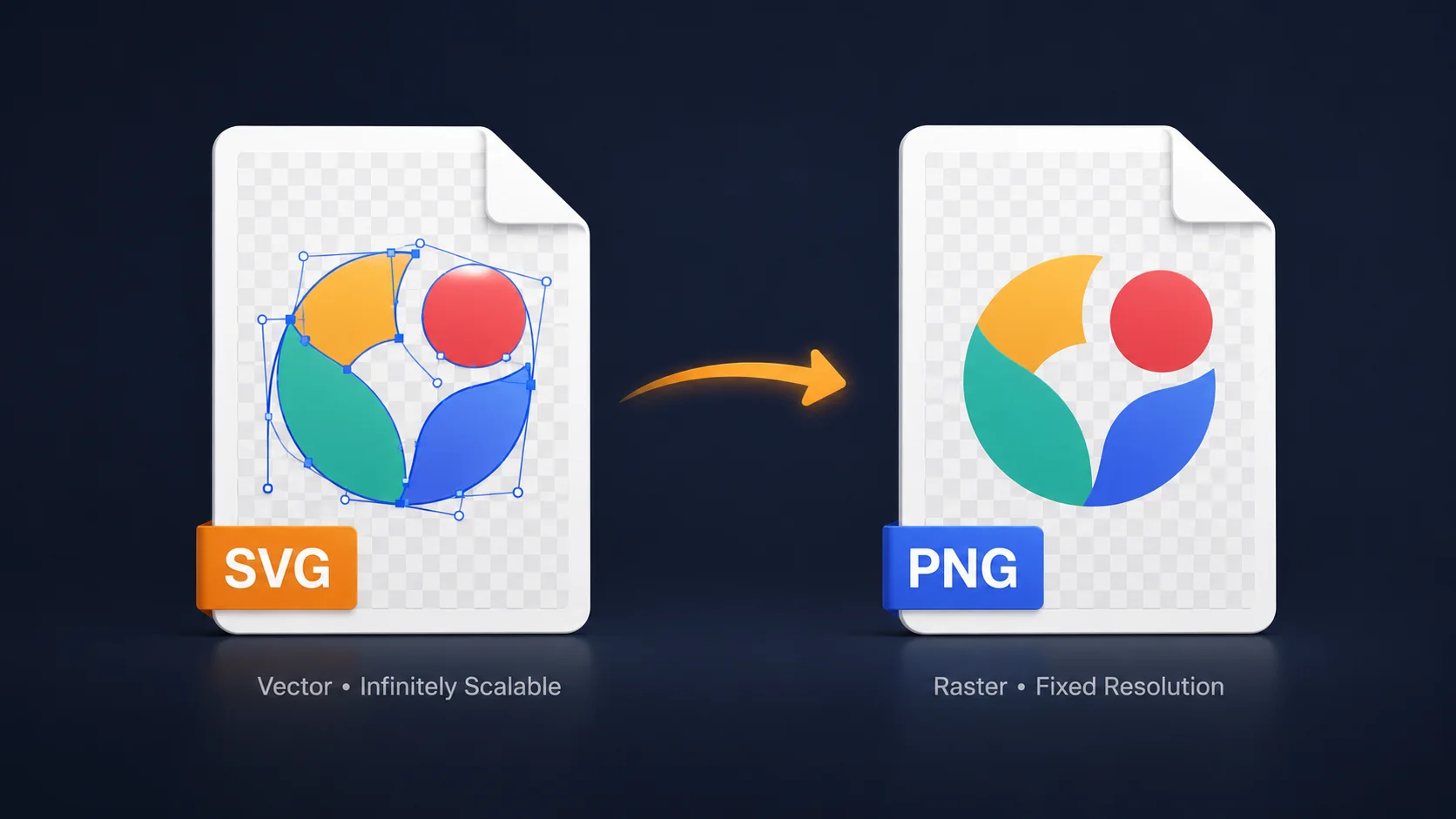
SVG and PNG can both support transparent backgrounds, but they store and display images differently. Understanding the difference helps you choose the right format for your project.
Vector vs raster images
SVG is a vector format. It uses mathematical instructions to create shapes, lines and text.
PNG is a raster format. It stores the image as a fixed grid of pixels.
An SVG can be resized repeatedly without losing quality. A PNG has fixed dimensions and may look blurry if enlarged beyond its original size.
Transparency support in both formats
Both SVG and PNG support transparent backgrounds.
SVG transparency is defined through the graphic’s elements and styles. PNG uses an alpha channel, which allows each pixel to have a different level of transparency.
When you convert SVG to transparent PNG, the converter must preserve this transparency rather than replacing it with a solid background.
Scalability, file size and compatibility
SVG is usually more scalable and may be smaller for simple logos, icons and illustrations.
PNG is generally more compatible with:
Social platforms
Presentation software
Image editors
Online forms
Document tools
E-commerce platforms
PNG files can become larger at higher resolutions because they store every pixel in the image.
When to use SVG and when to use PNG
Use SVG when:
You need unlimited scaling
The image will be used on a modern website
The graphic contains simple shapes or paths
You need easy colour or code-based editing
Use PNG when:
A platform does not support SVG
You need a transparent image for a presentation
The image will be uploaded to a CMS
You need broad compatibility
The graphic must be used in a raster image editor
How to convert SVG to PNG online without losing transparency
You can convert an SVG image to PNG through a browser without installing specialist software. For the best result, use the original SVG file and check the PNG background after downloading.
Step 1: Upload your SVG file
Open the online SVG to PNG converter and upload the SVG file from your computer, tablet or mobile device.
Use the original SVG file whenever possible. Screenshots or previously converted copies may already have reduced quality or lost transparency.
Step 2: Select PNG as the output format
Choose PNG as the destination format.
PNG is the correct choice when you need a raster image that keeps transparent areas, sharp lines and fine graphic details.
Step 3: Convert the SVG image
Start the conversion.
The converter rasterises the SVG by translating its vector paths, shapes, colours and transparency into PNG pixels.
Step 4: Download the PNG image
Download the converted PNG file to your device.
Before using it, check the file dimensions and confirm that all elements appear correctly.
Step 5: Verify the transparent background
Open the PNG in an image editor or viewer that displays transparency as a checkerboard pattern.
Check around:
Logo edges
Curves
Shadows
Icons
Small text
Fine details
If the background appears white or another solid colour, the original SVG may not have been transparent, or the converter may have added a background during export.
Tip: If you need to use the PNG on a coloured background, place the converted image over that background before publishing. This helps you spot unwanted white boxes or rough edges.
Why convert SVG to PNG?
Converting SVG to PNG is useful when compatibility matters more than unlimited scalability. PNG is widely supported and easy to use in documents, websites, design tools and social platforms.
Improve compatibility with websites and applications
Some older applications and upload systems do not support SVG files.
PNG works across most browsers, devices, content systems and image editors, making it a practical alternative.
Share images on social media and messaging apps
Many social media and messaging platforms do not accept SVG uploads.
Converting the graphic to PNG allows you to share logos, diagrams, illustrations and branded visuals more easily.
Use graphics in presentations and documents
PNG images can be inserted into PowerPoint presentations, Word documents, spreadsheets and PDFs.
Transparent PNG files are especially useful when the graphic must sit cleanly over a coloured background.
Prepare images for image editors and CMS platforms
Some content management systems and image editors handle PNG more reliably than SVG.
Converting SVG to PNG can simplify uploads, resizing, cropping and visual editing.
How to preserve transparency during SVG to PNG conversion
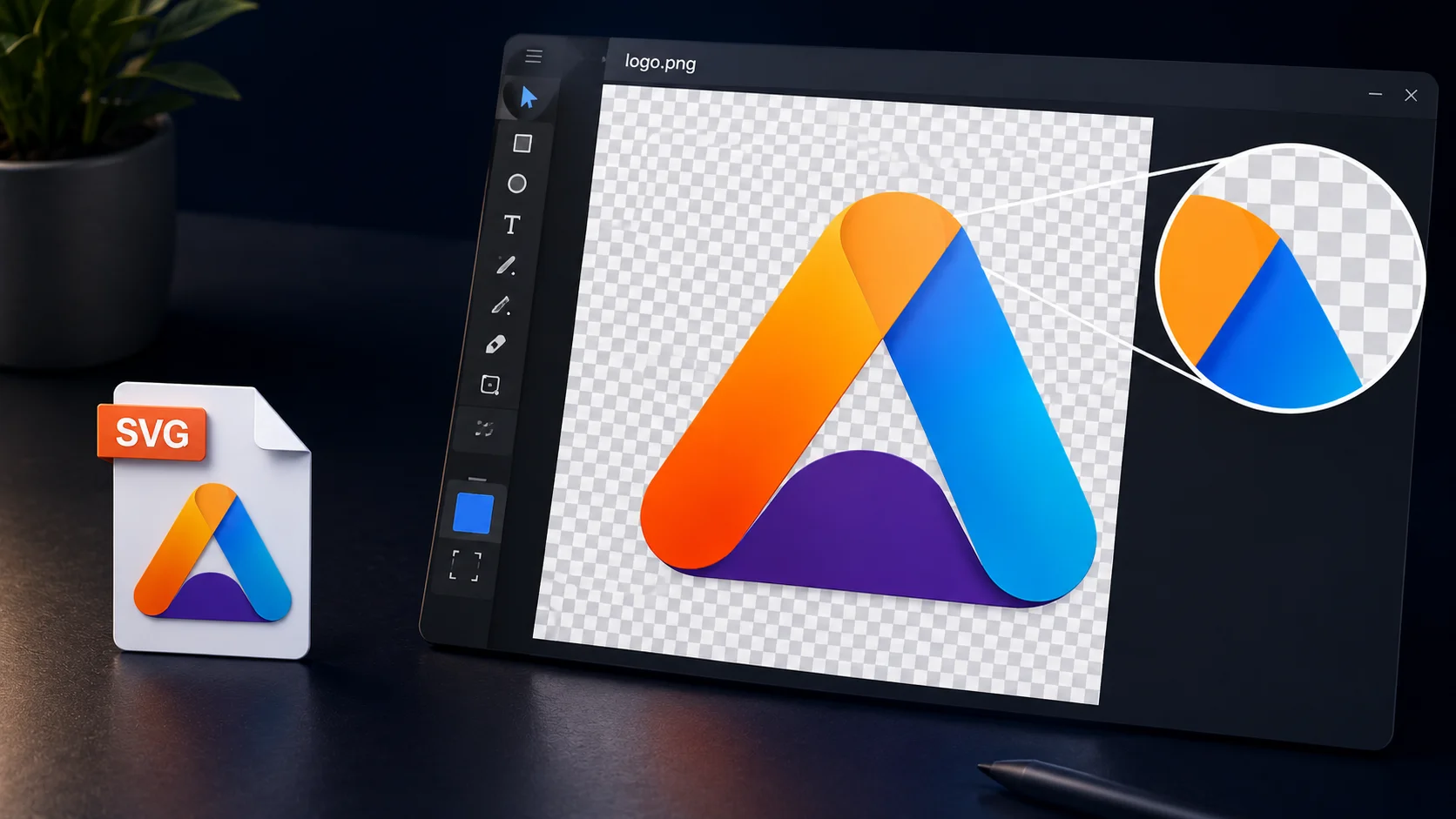
Transparency should carry across from SVG to PNG when the source file and converter both support it. If transparency disappears, the issue is usually caused by a background layer, incorrect export setting or unsupported conversion method.
Ensure the original SVG contains transparency
Check whether the SVG actually has a transparent background.
Some files may appear transparent in one viewer but include a white rectangle or background layer inside the graphic. If the SVG contains a background shape, that shape will also appear in the PNG.
Avoid adding background colours before exporting
Do not add a white or coloured background unless you specifically want one.
Keep the SVG canvas and unused areas transparent before conversion.
Verify transparency after conversion
Open the converted PNG in software that clearly shows transparency.
A checkerboard background usually indicates transparent areas. You can also place the image over a coloured background to confirm that no unwanted white box remains.
Save PNG in a format that supports alpha transparency
Standard PNG supports alpha transparency.
Avoid converting the image through JPG or another format first, because JPG does not support transparent backgrounds. For the cleanest result, convert directly from SVG to PNG.
How to maintain image quality when converting SVG to PNG
SVG files are resolution-independent, while PNG files have fixed pixel dimensions. Choosing the right export size is essential if you want the PNG to stay sharp.
Choose an appropriate output resolution
Select dimensions that match how the image will be used.
For example:
Small icons need modest dimensions
Website logos may need medium or high-resolution exports
Presentation graphics may require larger images
Print materials often need much higher resolution
Exporting too small may produce a blurry image when enlarged later.
Understand how SVG is rasterised into PNG
During conversion, the SVG’s vector elements are turned into pixels.
Once the PNG is created, it no longer has unlimited scalability. Its quality depends on the dimensions used during conversion.
Use higher resolutions for printing
Printed graphics usually need a higher resolution than website images.
Export the PNG at the final print dimensions where possible. Avoid creating a small PNG and enlarging it later.
Avoid enlarging low-resolution PNG files after conversion
Upscaling a PNG stretches its pixels and can make lines, text and shapes look soft or jagged.
If you need a larger image, return to the original SVG and convert it again at a higher resolution.
Common uses for SVG to PNG conversion
SVG to PNG conversion is useful across web design, marketing, presentations and e-commerce.
Logos and brand assets
Transparent PNG logos work well in documents, presentations, social media posts and email signatures.
They can be placed over different backgrounds without showing a visible box around the design.
Website graphics and UI elements
PNG may be needed for website builders, plugins or content systems that do not support SVG uploads.
Common examples include:
Buttons
Badges
Decorative graphics
Navigation elements
Interface icons
App icons and illustrations
Designers may convert SVG app assets to PNG when fixed pixel dimensions are required.
Different PNG sizes can be created for various screen resolutions and device types.
Marketing materials and presentations
PNG graphics are easy to use in:
Slide decks
Digital brochures
Social posts
Email campaigns
Online advertisements
Downloadable reports
E-commerce product badges and labels
Product badges such as “New”, “Sale”, “Limited Edition” or “Best Seller” are often created as SVG files.
Converting them to transparent PNG makes them easier to place over product images in stores and marketplaces.
Common SVG to PNG problems and solutions
Transparent background is missing
Check whether the original SVG contains a background layer.
Convert directly to PNG and use a converter that preserves alpha transparency.
Fonts appear different after conversion
Fonts may change if the converter cannot access the typeface used in the SVG.
Convert text to vector outlines before export where possible, or use a widely supported font.
Icons or shapes look blurry
The PNG was probably exported at a resolution that is too low.
Convert the original SVG again using larger pixel dimensions rather than enlarging the existing PNG.
Colours do not match the original SVG
Colour differences can occur because applications interpret colour profiles differently.
Compare the original and converted images in more than one viewer before editing them further.
The PNG file is larger than expected
PNG uses lossless compression, and high-resolution transparent images can be large.
Reduce the image dimensions if they exceed your needs, or use Compress Images after conversion.
Key takeaways
Key Takeaways
PNG supports transparency: Convert SVG directly to PNG if you need a transparent background.
Use the original SVG: Screenshots or copied versions may already have lost transparency or quality.
Choose the right export size: PNG has fixed dimensions, so export large enough for your intended use.
Check the background: Verify the PNG on a checkerboard or coloured background before publishing.
FAQs
Yes. Use a converter that supports alpha transparency and make sure the original SVG does not contain a solid background layer.
It should remain transparent if the source SVG contains transparency and the converter preserves it correctly.
The conversion does not necessarily reduce visible quality, but the PNG has fixed dimensions. It may become blurry if enlarged beyond the exported size.
Yes. You can use a free SVG to PNG converter to upload an SVG, convert it in your browser and download the PNG without installing software.
Yes. Browser-based converters work across Windows, Mac, Android, iPhone, iPad and other devices with a modern web browser.
Choose dimensions based on how the PNG will be used. Website graphics need smaller dimensions, while presentations and printed materials may require higher-resolution exports.
SVG files store mathematical vector instructions, while PNG files store individual pixels. High-resolution PNG images may therefore be much larger than simple SVG files.
Yes. PNG files can be opened in most image editors. However, the converted image is raster-based, so individual SVG paths and vector shapes will no longer be editable.
Convert SVG to PNG without losing transparency online
Need a transparent PNG version of your SVG logo, icon or graphic?
Use iConvertOnline’s SVG to PNG converter to convert SVG files into PNG images while preserving transparency as accurately as possible.
You can also continue working with your files using PNG to SVG, Compress Images, Resize Image, PNG to JPG or JPG to PNG.
Related tools
SVG to PNG – Convert SVG files into transparent PNG images.
PNG to SVG – Convert PNG images into SVG format.
Compress Images – Reduce PNG image file size for websites and uploads.
Resize Image – Adjust image dimensions for presentations, websites and forms.
PNG to JPG – Convert PNG images into smaller JPG files.
JPG to PNG – Convert JPG images into PNG format.
Written by Zaggy K, founder of iConvertOnline. Reviewed for accuracy and updated March 2026.
SEO Title
Private by default. Secure by design.
With iConvertOnline, your files aren't "content"—they're yours. We process millions of files, but we never own a single one.
Files are transferred via a secure, encrypted tunnel. No snooping, no interception.
We don't hold onto your data. Every file is permanently wiped from our servers 60 minutes after processing.
Your documents run in isolated containers, ensuring no unauthorized access—not even by us.
Maral Ercel
Content Writer
Experienced in researching topics and creating clear, engaging and well-structured articles. Focused on producing useful, accurate and reader-friendly content for different audiences and industries.
Updated Jul 13, 2026