
Try Our Free Tools
Convert, compress, and edit PDFs instantly in your browser.
If you want to convert PDF to Word without losing formatting, the best approach is to use a reliable PDF to DOCX converter, start with a clean original file, and review the converted Word document before editing. Text-based PDFs usually preserve fonts, tables, images and spacing better, while scanned PDFs may need OCR before the text becomes editable.
Formatting matters when you’re working with reports, contracts, invoices, resumes, forms, manuals or school assignments. A poor conversion can shift tables, replace fonts, move images or break page spacing, which means you end up fixing the document manually.
If you want a quick option in your browser, use iConvertOnline PDF to Word to convert your PDF into an editable Word document.
Why PDF to Word formatting changes
PDF and Word files work differently. A PDF is made to keep a fixed layout, while Word is made for editing. During conversion, the tool has to rebuild the PDF layout into editable Word elements.
Fixed layouts vs editable Word documents
A PDF keeps text, images, spacing and page layout locked in place. That is why the same PDF usually looks consistent across devices, browsers and operating systems.
A Word document is flexible. Text can move, images can shift, and margins may change depending on the editor, installed fonts and page setup. This is why even a good PDF to Word converter may need to slightly adjust the layout.
Common formatting problems
Formatting changes usually happen when the PDF contains complex layout elements. The most common issues include:
Custom or missing fonts: Word may substitute the original font if it is not available.
Complex tables: Merged cells, borders and narrow columns can shift during conversion.
Multi-column layouts: Brochures, newsletters and reports may need extra cleanup.
Scanned pages: Image-based pages need OCR before they can become editable text.
Headers and footers: Page numbers, logos and repeated text may move slightly.
Images and charts: Visual elements can change position if the layout is complex.
Why scanned PDFs need OCR
Scanned PDFs are usually image-based. The page looks like text, but the text itself is not selectable, searchable or editable.
OCR, or Optical Character Recognition, reads text from scanned pages and turns it into editable content. If your PDF text cannot be selected or copied, use an OCR PDF tool before or during conversion.
How to convert PDF to Word without losing formatting online
Online conversion is the fastest method for everyday files such as reports, invoices, resumes, contracts, forms and assignments. For best results, prepare the PDF first, then check the Word document before making major edits.
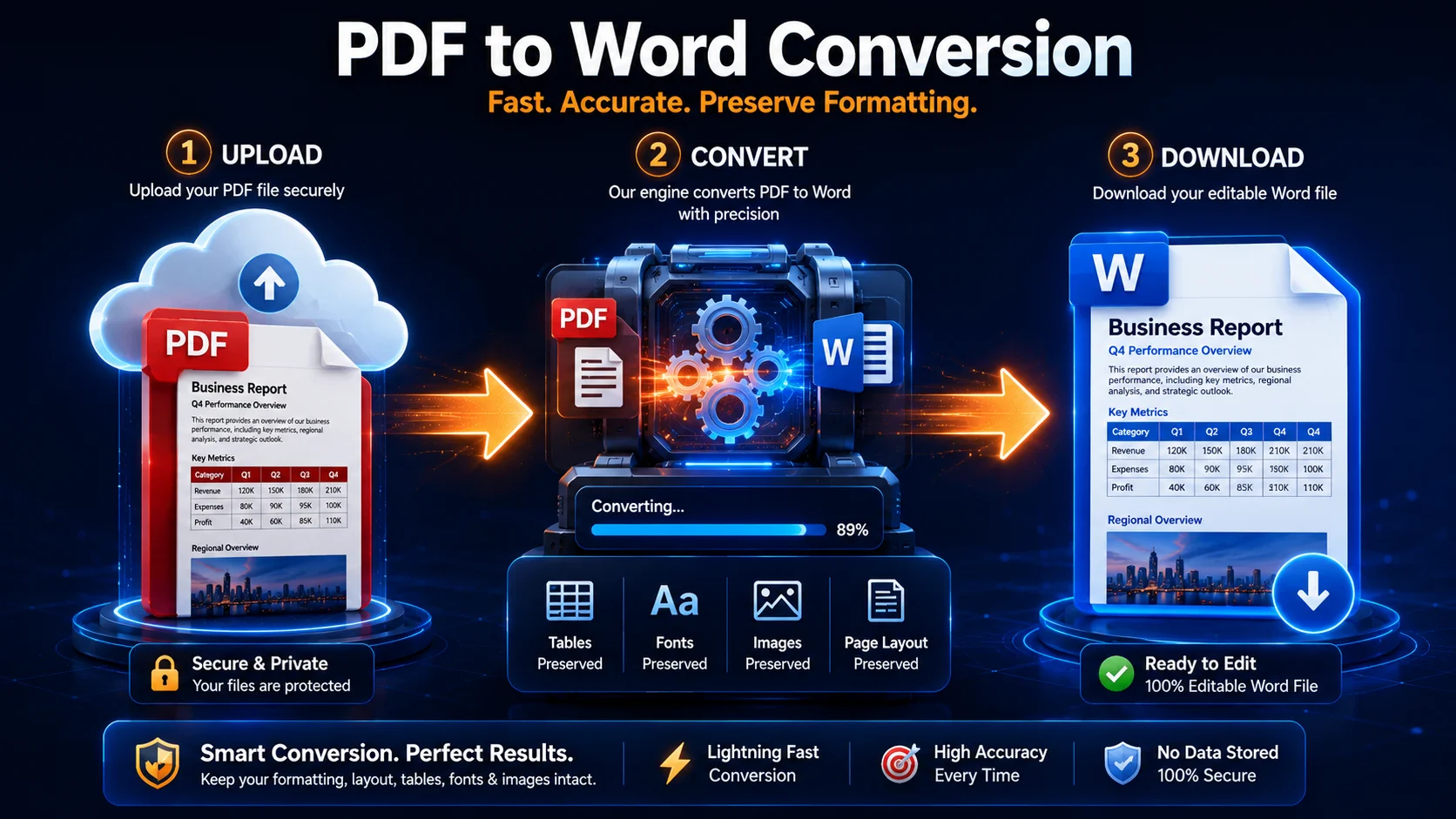
Step 1: Upload your PDF file
Open the online PDF to Word converter and upload your PDF.
For best results, use the original digital PDF rather than a scanned copy, screenshot or low-quality photo of a document. Clean digital PDFs usually preserve layout better.
Step 2: Convert the PDF to editable Word format
The converter changes your PDF into an editable DOCX file. A good PDF to DOCX converter tries to preserve:
Fonts
Paragraphs
Tables
Images
Lists
Headers and footers
Page spacing
If the document is scanned, OCR may be needed to make the text editable.
Step 3: Download and review the Word document
After conversion, download the Word file and check it before making large edits.
Review the fonts, tables, images, spacing, margins, headers and page breaks. This helps you catch small layout changes early, before you start editing the content.
Tip: Always keep the original PDF as a backup. If the Word version needs adjustment, you can convert again from the original rather than working from a changed copy.
Best use cases for online PDF to Word conversion
An online PDF to Word converter is useful when you need to update, reuse or edit content from an existing PDF.
Business reports: Update figures, sections, tables or wording without rebuilding the document.
Contracts: Edit clauses, dates, names or terms when you have permission to modify the file.
Invoices: Reuse invoice layouts or adjust details in an editable format.
Resumes: Convert a PDF resume back into Word for quick updates.
Application forms: Convert forms into editable Word files when allowed.
School assignments: Edit downloaded or submitted study documents.
Manuals and meeting notes: Update old documents without starting again.
If you need to turn the edited file back into PDF, use the Word to PDF converter.
Tips to keep formatting when converting PDF to Word
You can improve conversion accuracy by preparing the file properly and checking the result carefully. These simple steps reduce the chance of broken tables, missing fonts and awkward page breaks.
Use a high-quality original PDF
A clean PDF exported from Word, Excel, PowerPoint or another document program will usually convert better than a scanned version.
PDFs with clear text, embedded fonts and simple page layouts are easier to convert without changing format.
Avoid scanned files when possible
Scanned files rely on OCR, so they are more likely to need manual cleanup. If you have access to the original digital PDF, use that instead.
Check fonts, tables, headers and images after conversion
After downloading the Word file, review the areas most likely to shift:
Font styles
Table columns
Header and footer text
Images and charts
Bullet points
Page numbers
Line spacing
If the final document becomes too large after editing and saving back to PDF, use Compress PDF to reduce the file size.
Use OCR for scanned or image-based PDFs
If the PDF is scanned, use OCR PDF to recognise the text. OCR helps convert scanned PDF to Word, but the quality of the scan affects the final result.
Keep complex designs simple before editing
Highly designed PDFs can be harder to convert perfectly. Documents with several columns, layered graphics, text boxes or unusual fonts may need extra formatting checks.
For visual files, tools such as PDF to JPG or PDF to PowerPoint may be more suitable, depending on your goal.
How to convert scanned PDF to Word
Scanned PDFs need OCR because the content is stored as an image rather than editable text. The conversion quality depends heavily on the scan quality.
What OCR does
OCR analyses the scanned page, recognises letters and numbers, then recreates them as editable text in Word. This allows you to copy, search and update the document.
When OCR works best
OCR usually works best when:
Text is sharp and readable
Pages are straight
Scan quality is high
Contrast is strong
Fonts are simple
There are no heavy shadows, marks or folds
Clear scans usually produce better Word documents.
Common OCR formatting limitations
OCR can still struggle with:
Handwriting
Decorative fonts
Faded scans
Watermarks
Stamps
Complex tables
Multi-column layouts
After converting a scanned PDF, always review the Word document before sending or editing further.
Online vs desktop PDF to Word conversion
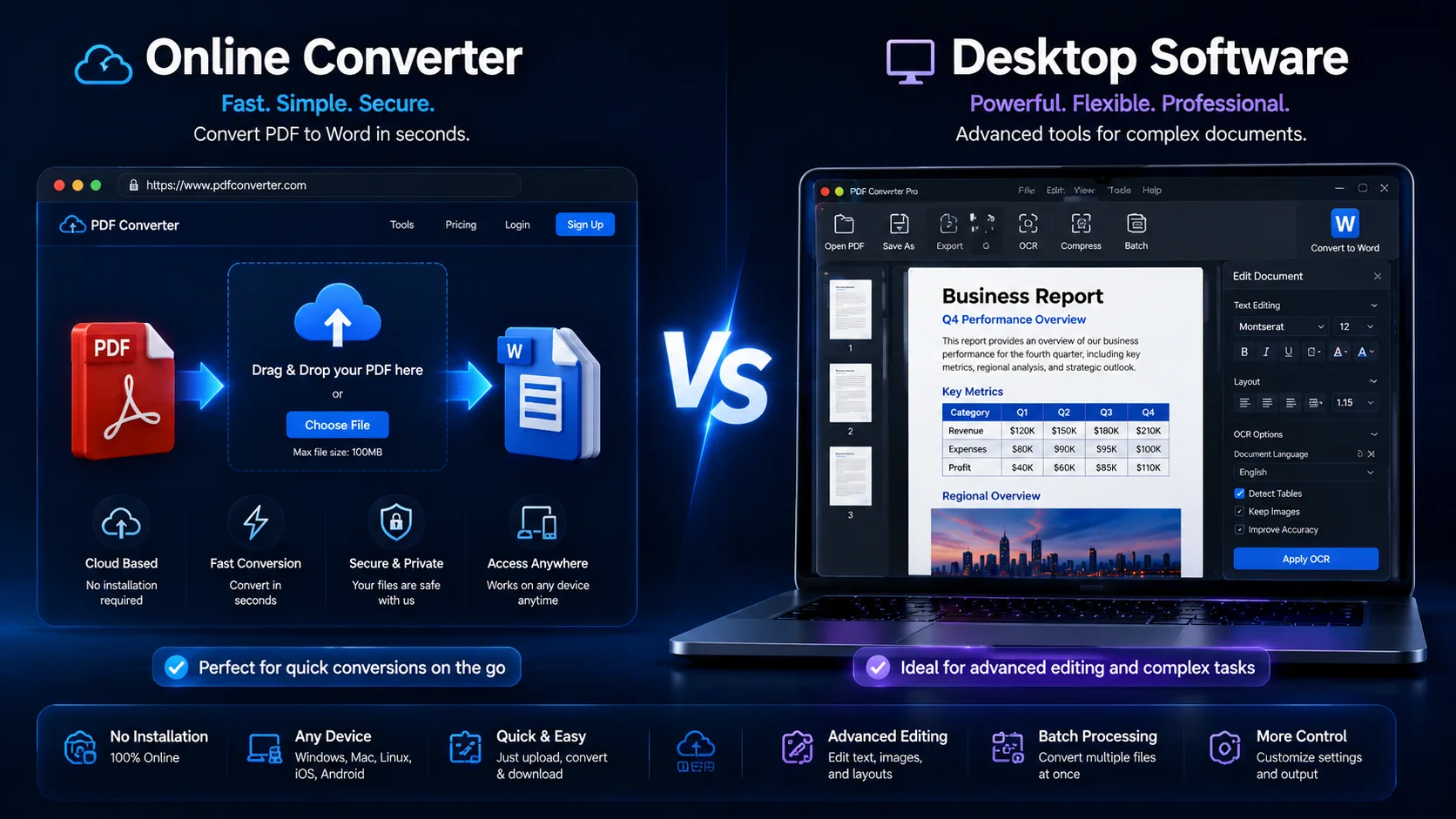
Both online tools and desktop software can convert PDF to editable Word. The best option depends on file size, layout complexity, privacy requirements and how often you convert documents.
When an online converter is better
An online converter is better when you want a fast, simple option without installing software.
It is useful for:
Everyday PDFs
Quick document edits
School or work files
Simple forms
Reports and invoices
One-off conversions
You can also use related tools such as Merge PDF, Split PDF, Edit PDF and Organize PDF for common document tasks.
When desktop software may be needed
Desktop software may be better for:
Very large files
Highly confidential documents
Batch conversions
Complex legal or technical documents
Advanced manual editing
If privacy is a concern, review the site’s Privacy Policy and Security page before uploading sensitive files.
Which option is best for quick everyday use?
For most users, an online PDF to Word converter is the easiest choice. It works in the browser, requires no setup, and is suitable for quick PDF to DOCX conversion.
Desktop software is usually only needed for advanced editing, highly sensitive documents or high-volume document work.
How to fix formatting issues after PDF to Word conversion
Small formatting issues are common, especially with complex PDFs. Most can be fixed quickly in Word once you know where to look.
Adjust spacing and margins
Start by checking paragraph spacing, line height and page margins. These settings often cause text to move between pages.
Replace missing fonts
If the original PDF uses a font that is not available in Word, another font may appear instead. Choose a similar font or install the original font if you have access to it.
Fix tables and columns
Tables may need column width or cell spacing adjustments. Check borders, merged cells and alignment, especially in invoices, reports and forms.
Review images and page breaks
Check image placement, charts, screenshots, page breaks, headers and footers. A quick final review helps make the Word file look closer to the original PDF.
Key takeaways
Key Takeaways
Text-based PDFs convert best: They usually preserve fonts, tables, images and spacing more accurately than scans.
Scanned PDFs need OCR: Use OCR when text cannot be selected, copied or searched.
Review before editing: Check fonts, tables, images, margins and page breaks before making changes.
Use the right workflow: Convert PDF to Word, edit the DOCX, then use Word to PDF if you need a final PDF version.
FAQs
Yes, you can convert PDF to Word without losing formatting in many cases. Text-based PDFs usually convert best. Scanned PDFs may need OCR and a final manual review.
Yes, many online tools offer free PDF to Word conversion for standard files. You can use iConvertOnline’s free PDF to Word converter directly in your browser.
Your Word file may look different because PDF and Word use different layout systems. Fonts, tables, images, margins, headers and scanned pages can all affect the final result.
Yes. Scanned PDFs can be converted to editable Word files with OCR. For best results, use a clear scan with straight pages and sharp text.
Use a high-quality original PDF, convert it to DOCX format, avoid scanned files where possible, and review the converted document before editing. Tables and fonts usually convert better when the source PDF is clean.
Use trusted online tools and avoid uploading highly sensitive files to unknown websites. You can review iConvertOnline’s Security, Privacy Policy and Terms pages before using the tool.
Convert PDF to Word without losing formatting online
Need an editable Word document without rebuilding the layout manually?
Use iConvertOnline’s PDF to Word converter to convert your PDF into an editable DOCX file while preserving fonts, tables, images and spacing as accurately as possible.
You can also continue working with your file using Word to PDF, Compress PDF, Merge PDF, Split PDF or OCR PDF.
Related tools
PDF to Word – Convert PDFs into editable DOCX files.
OCR PDF – Recognise text in scanned or image-based PDFs.
Word to PDF – Convert edited Word documents back to PDF.
Compress PDF – Reduce file size after saving back to PDF.
Merge PDF – Combine multiple PDFs into one file.
Split PDF – Extract pages or split large PDFs.
Written by Zaggy K, founder of iConvertOnline. Reviewed for accuracy and updated March 2026.
Private by default. Secure by design.
With iConvertOnline, your files aren't "content"—they're yours. We process millions of files, but we never own a single one.
Files are transferred via a secure, encrypted tunnel. No snooping, no interception.
We don't hold onto your data. Every file is permanently wiped from our servers 60 minutes after processing.
Your documents run in isolated containers, ensuring no unauthorized access—not even by us.
Maral Ercel
Content Writer
Experienced in researching topics and creating clear, engaging and well-structured articles. Focused on producing useful, accurate and reader-friendly content for different audiences and industries.
Updated Jun 23, 2026